Getting started
Chapter 1 · Getting started · Lesson 4 · 1 min
Arranging the board
Move, resize, stack and lock widgets, fit the board to your screen, and group widgets as tabs.
The board is free-form: place widgets anywhere, at any size, and let them overlap if you like.
Moving and resizing
| Action | How |
|---|---|
| Move | Drag the widget by its header |
| Resize | Drag any edge or corner. Neighbours sharing that edge resize with it |
| Fill free space | Double-click an edge |
| Bring to front | Click the widget, or choose Keep on top in its menu |
| Collapse | Shrink the widget to its header |
Board controls
| Control | What it does |
|---|---|
| Lock | Locks one widget (from its menu) or the whole board (Lock in the workspace bar), so nothing moves by accident |
| Fit | Scales the board to the current window. Handy when you switch screens |
| Refresh | Reloads every widget in the workspace |

- 1Lock the board
- 2Fit
- 3Refresh
Tabs inside a widget
One window can hold several widgets as tabs, such as Holders, Positions and Orders in one spot. Add tab… in a widget's menu adds one, and Move to own window takes it out again.
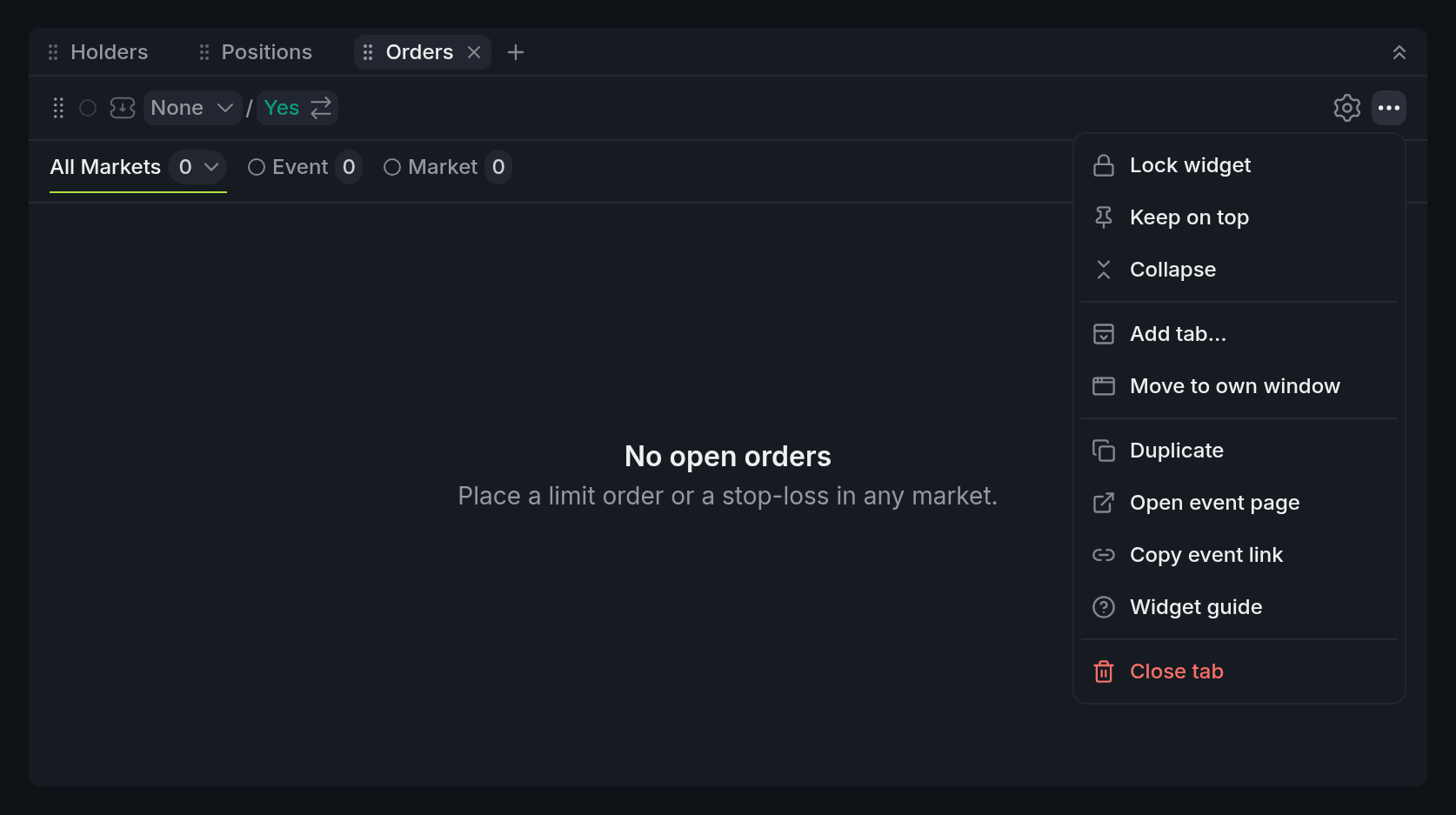
- 1Tabs: Holders, Positions, Orders
- 2Add tab…
Finish reading to complete this lesson