Chapter 1 · Getting started · Lesson 3 · 2 min
Widgets
Add widgets, read the widget header, and change settings or save them as presets.
Each widget does one job, like showing a chart, a book, your positions or a scanner. Once you know one, you know them all: they share the same header and settings.
Adding a widget
Click Add widget in the workspace bar, or right-click an empty spot on the board to drop a widget right there. Search by name or browse by topic, and star the ones you use most to find them in Favorites.
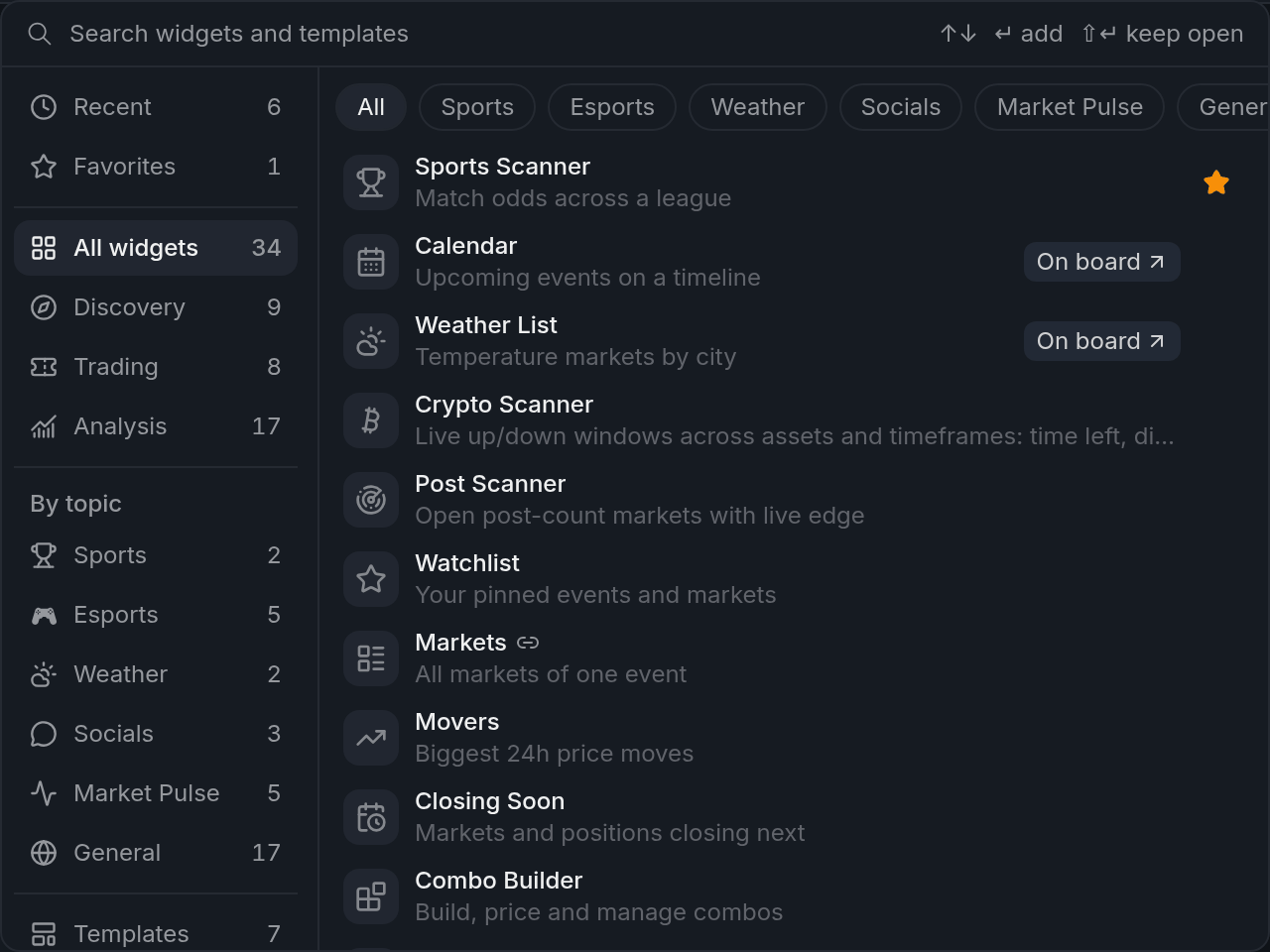
- 1Search widgets and templates
- 2By topic
- 3Needs a market
Some widgets, like the Orderbook, Chart and Betslip, show one market at a time. They carry a small link icon in the picker. Others, like Positions, Orders and the scanners, cover your whole account. Colour groups explain how a widget picks its market.
Favorites in the footer
Your starred widgets also sit in the footer, one click away. Click one to bring it up on the board. Got several? Each click shows the next. None on the board yet? The click adds one. Want another? Shift+click it or press its +, or drag it onto the board right where you want it. Drag along the footer to reorder, and right-click for Remove from favorites.
The widget header
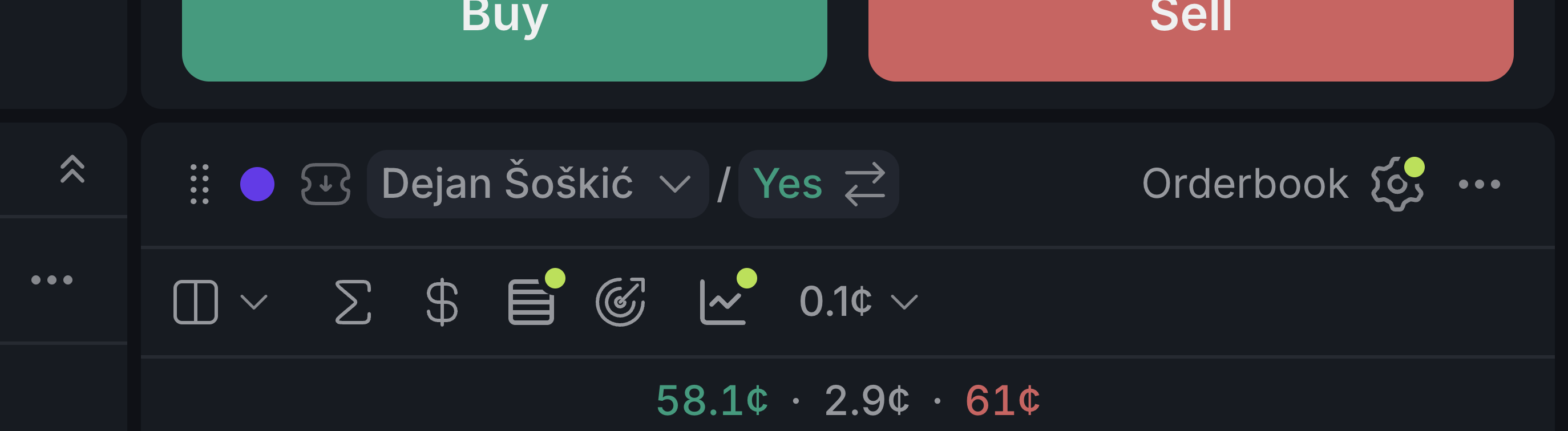
- 1Colour dot: picks the widget's colour group
- 2Market chip: the event's markets and the rules
- 3Outcome chip: swaps Yes and No, or the two teams
- 4Gear: opens the widget's settings
- 5Menu: lock, tabs, duplicate, widget guide and more
The market chip opens the event's other markets with their Yes and No prices, so you can switch in a click. Rules at the bottom shows how the current market resolves. The outcome chip next to it switches sides in one click: Yes and No, or the two teams.
Settings and presets
There's no Save button: changes apply right away. Changed your mind? Revert changes undoes everything since you opened the panel; with nothing changed, Reset to defaults starts over.
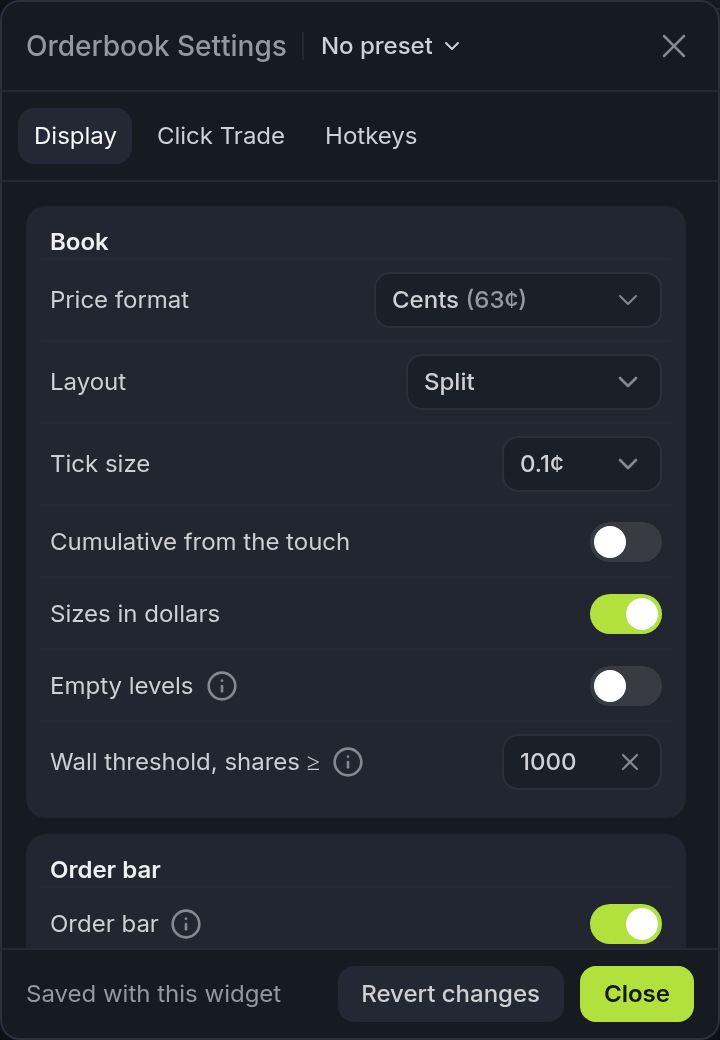
- 1Revert changes
- 2Presets
Using the same setup in a few places? Save it as a presetPresetA saved set of settings for one widget type, available in every workspace. and pick it in any workspace. If you tweak a widget afterwards, Update with current settings saves those changes back to the preset. You can keep up to 20 presets for each widget type.
Finish reading to complete this lesson