Chapter 3 · Trading · Lesson 6 · 3 min
Orders
All your resting limit orders and TP/SL rules in one list. Edit, move and cancel them in bulk.
Orders lists every resting limit orderLimit orderAn order to buy or sell at your price or better. Whatever doesn't fill right away waits in the book. and active take-profit or stop-loss rule you have, across all markets. It's where you reprice, move a whole ladder at once, or cancel what you no longer want. It needs no market, but in a colour group it can narrow down to that colour's event or market.
What you see
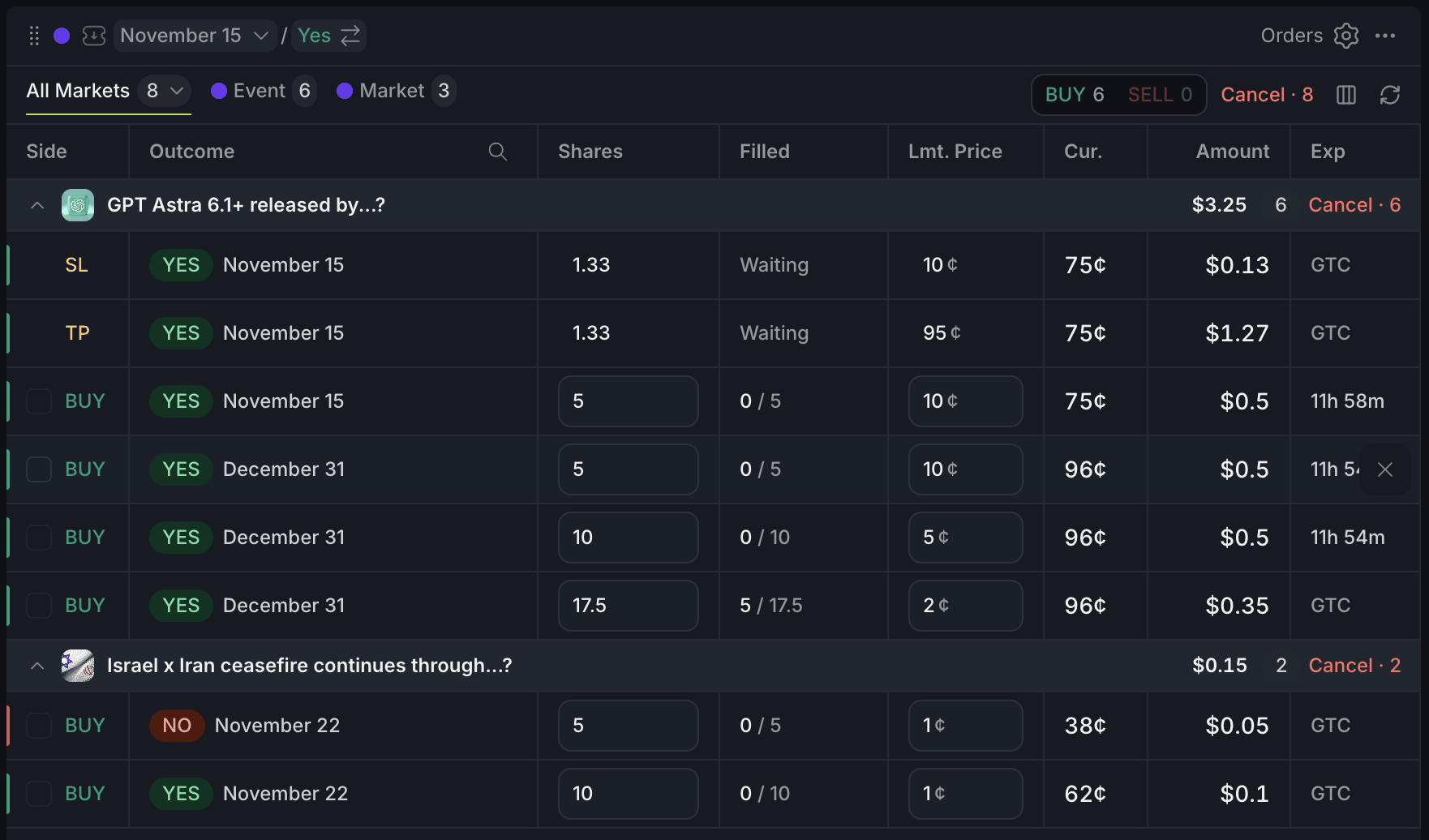
- 1Cancel · N cancels the whole list
- 2✕ cancels this order right away
- 3Your TP and SL rules
- 4Click to edit shares or price
- 5Filled: how much has traded
Rows are grouped by event. Shares is what's still resting, Filled is how much of the original size has traded, and Exp says GTC or the time left.
TP and SL rows are your Auto-Exit rules from the Betslip; they show whether they're waiting or executing.
Using it
Cancelling
The ✕ on a row cancels that order straight away. Cancel · N in the toolbar cancels everything the list shows (or only the orders you've picked), and the same button on an event header cancels that event's orders. Both of those ask for a second click first.
Editing one order
Click a row's Shares or Lmt. Price to change it: step it or type a new value, then press Enter. The order keeps its expiry.
An edit or a move cancels the order and places a new one, so it goes to the back of the queue. If the new order is rejected, nothing is left at the old price. The widget tells you, and after a group move it offers Re-place.
Moving many orders at once
Tick the box on each order you want, or ⌘/Shift-click rows. Alt-click a side, outcome or market to pick every order like it in that event. A bar opens at the bottom: press ↑ ↓ (hold Shift for 5 steps) or type how far to move, check the struck-through old prices against the new ones, and press Move.
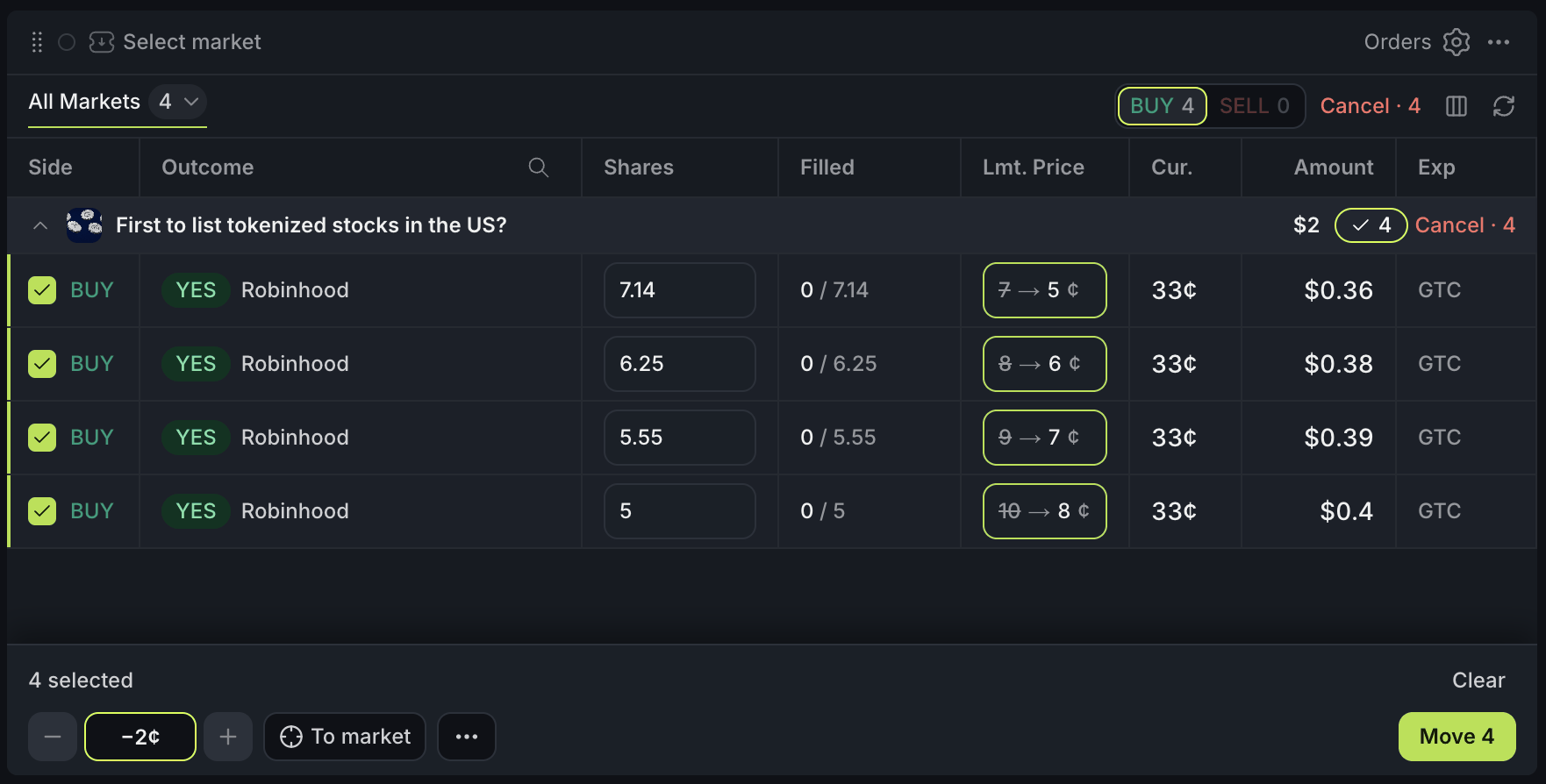
- 1Picked orders
- 2Old price → new price
- 3Step with − and +, or type the move
- 4Move sends it
The bar can also send each ladder's top order To market, widen or narrow the gaps between levels, and Mirror a move across the two outcomes of a market. A move that would fill at once against the book asks for a second click, and Undo appears for a short while after.
With other widgets
- In a colour, the Event and Market tabs follow that colour's market, so the list narrows as you switch markets elsewhere.
- Orders you place in the Betslip, Orderbook, Ladder or Chart show up here.
Tips
- Quoting a ladder of bids? Pick them all with BUY in the toolbar, then shift the whole ladder a tick or two with ↑ ↓ and Enter as the market moves.
- Turn on Distance to fill in settings to see how far each order is from trading. Anything in amber is 5¢ or more away.
Finish reading to complete this lesson
Extras
Finding orders
The tabs switch between All Markets and, in a colour, that colour's Event or Market. The type menu shows All types, LMT or TP/SL. Search from the Outcome header matches any side, outcome, market or event, and column headers sort. On a narrow widget the rows become cards and search and sort move to the toolbar.
Columns
Side and Outcome always lead. Shares, Filled, Lmt. Price, Cur. (the live price), Amount and Exp can be hidden and reordered from the columns button or the settings.
Settings
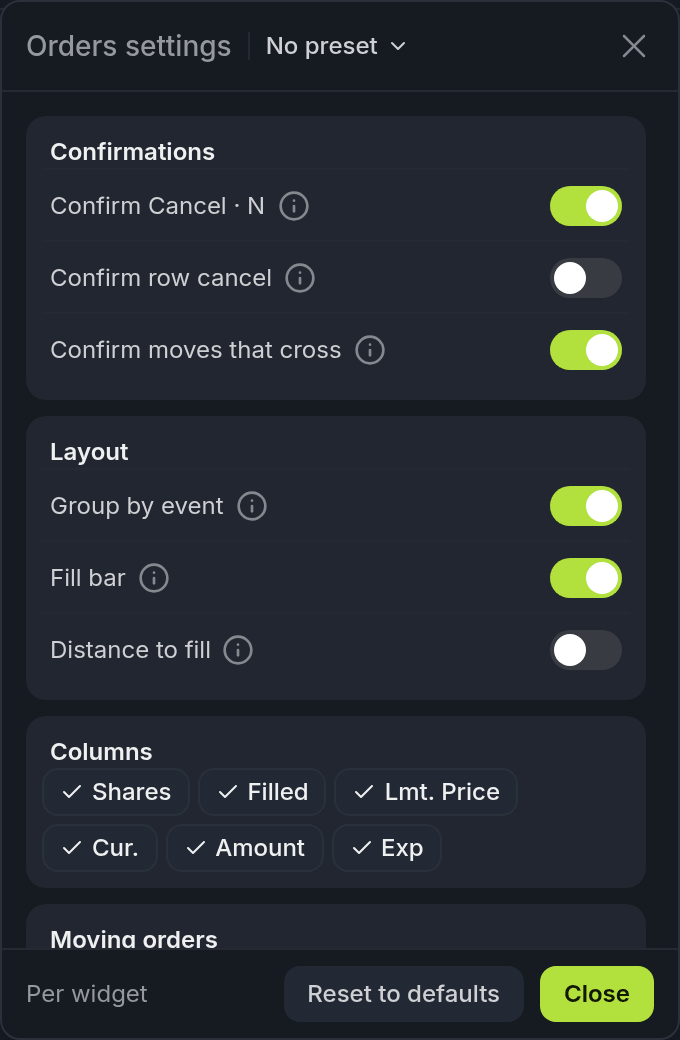
- 1Confirmations
- 2Distance to fill: off by default
| Setting | What it does |
|---|---|
| Confirmations | Confirm Cancel · N (on), Confirm row cancel (off), and Confirm moves that cross (on). |
| Group by event | One header per event with its total, count and Cancel · N. Off: one flat list. |
| Fill bar | The thin bar under Filled. |
| Distance to fill | How far the book has to move for each order to trade. 5¢ or more reads amber. |
| Columns | Which columns show, and in what order. |
| Moving orders | The keys for picking and moving orders. |