Chapter 3 · Trading · Lesson 1 · 5 min
Betslip
Buy and sell one outcome side by side, at market or with a limit, and set stop-loss and take-profit exits.
The Betslip places orders on one market, with Buy and Sell side by side: add to a position or cut it without switching tabs. It follows its colour group.
What you see
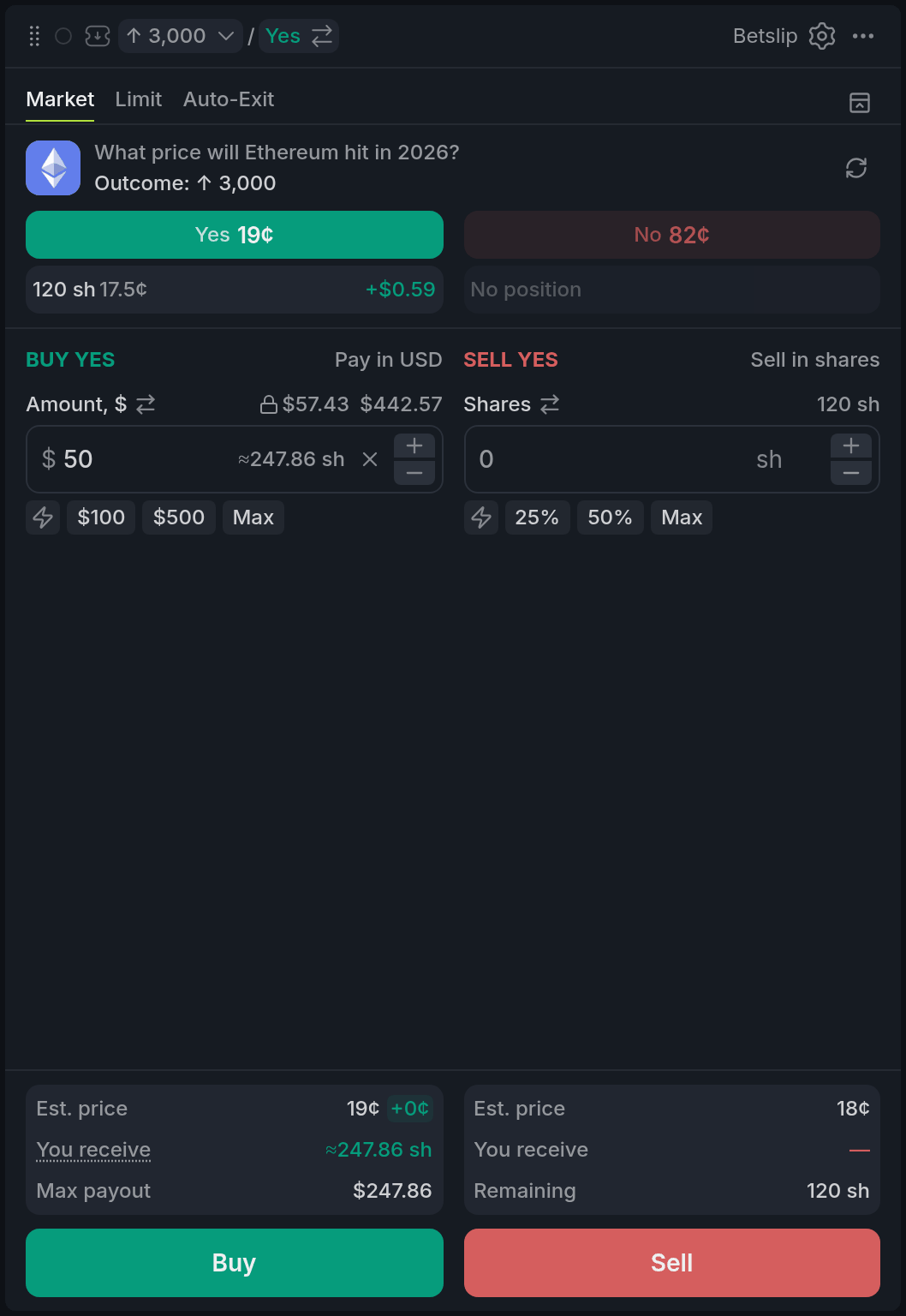
- 1Market / Limit / Auto-Exit tabs
- 2Yes / No and your position
- 3Balance: click to use all
- 4Quick amounts and ⚡
- 5You receive
Each Yes/No button shows the best askAskA resting order to sell. The best ask is the lowest price any seller will accept right now., the price you'd pay now. Under it is your position there: free shares, average price and live profit or loss.
Buys start in dollars, sells in shares; ⇄ swaps the unit. Click the balance above a field to use all of it.
Using it
Market orders
On Market, Buy and Sell trade at once at the best prices in the book; Enter in the field works too. Hover You receive to check the price and fee first.
Each market order is capped 10¢ past the previewed prices, so a jumpy book can't fill you much worse. Change it under Slippage in settings.
Limit orders
On Limit, the price opens one tick behind the best price, so the order rests instead of filling. The Bid, Ask and ±1% chips move it in one click, and ↑ ↓ step it.
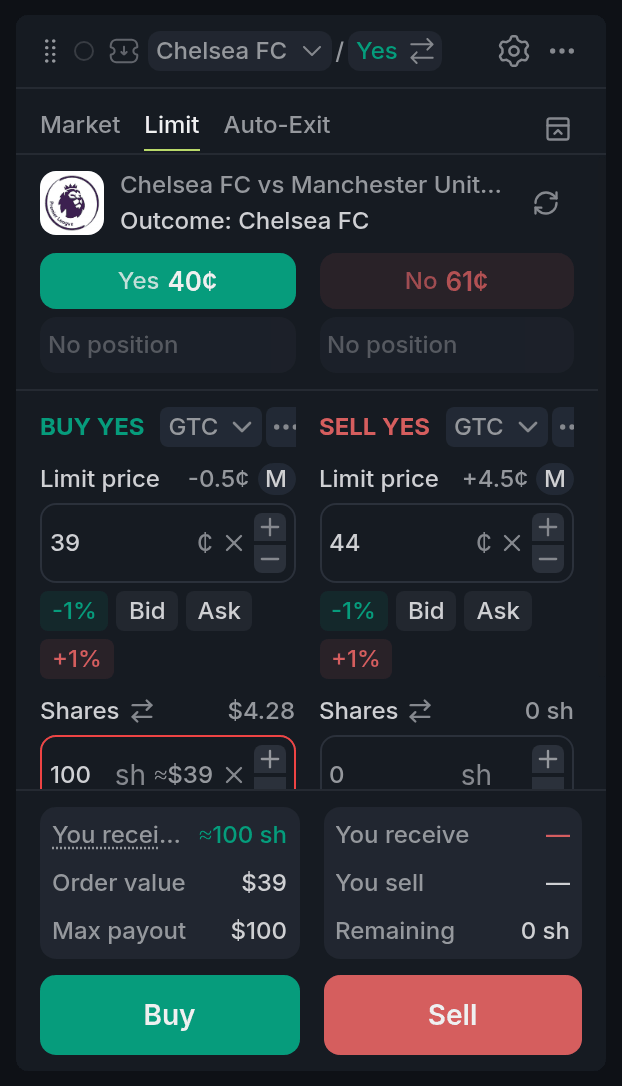
- 1Limit price, + / − to step
- 2Bid / Ask / ±1% chips
- 3M / T: maker or taker
- 4GTC menu and ⋯ (Post only)
The M / T badge says whether it will rest (maker) or fill at once (taker). Orders are GTCGTCGood 'til cancelled: a limit order that stays in the book until it fills or you cancel it. unless you pick an expiry in the GTC menu, and Post only, under ⋯, rejects any limit that would fill straight away.
Quick amounts and Fast
The chips under each amount fill in a size, like $100 or 50% of your shares.
With ⚡ on, clicking a chip sends the order at once, with no Buy or Sell press.
Selling a position
Click your position row under Yes or No to put all of it in Sell. If some of it sits in your sell orders, the column warns they'll be cancelled first.
Auto-Exit
Auto-Exit puts a stop-lossStop-lossAn exit rule that sells your position when the price falls to a level you set, to cap the loss. or take-profitTake-profitAn exit rule that sells your position when the price rises to a level you set, to lock in the gain. on your position. Set a trigger in cents and how much to sell, then Save. Rules watch the best bidBidA resting order to buy. The best bid is the highest price any buyer is offering right now. on our servers, so they fire even with Pro closed. A take-profit never sells below its trigger. A stop-loss sells at market into whatever bids there are. In a thin book, that can be well below your trigger.
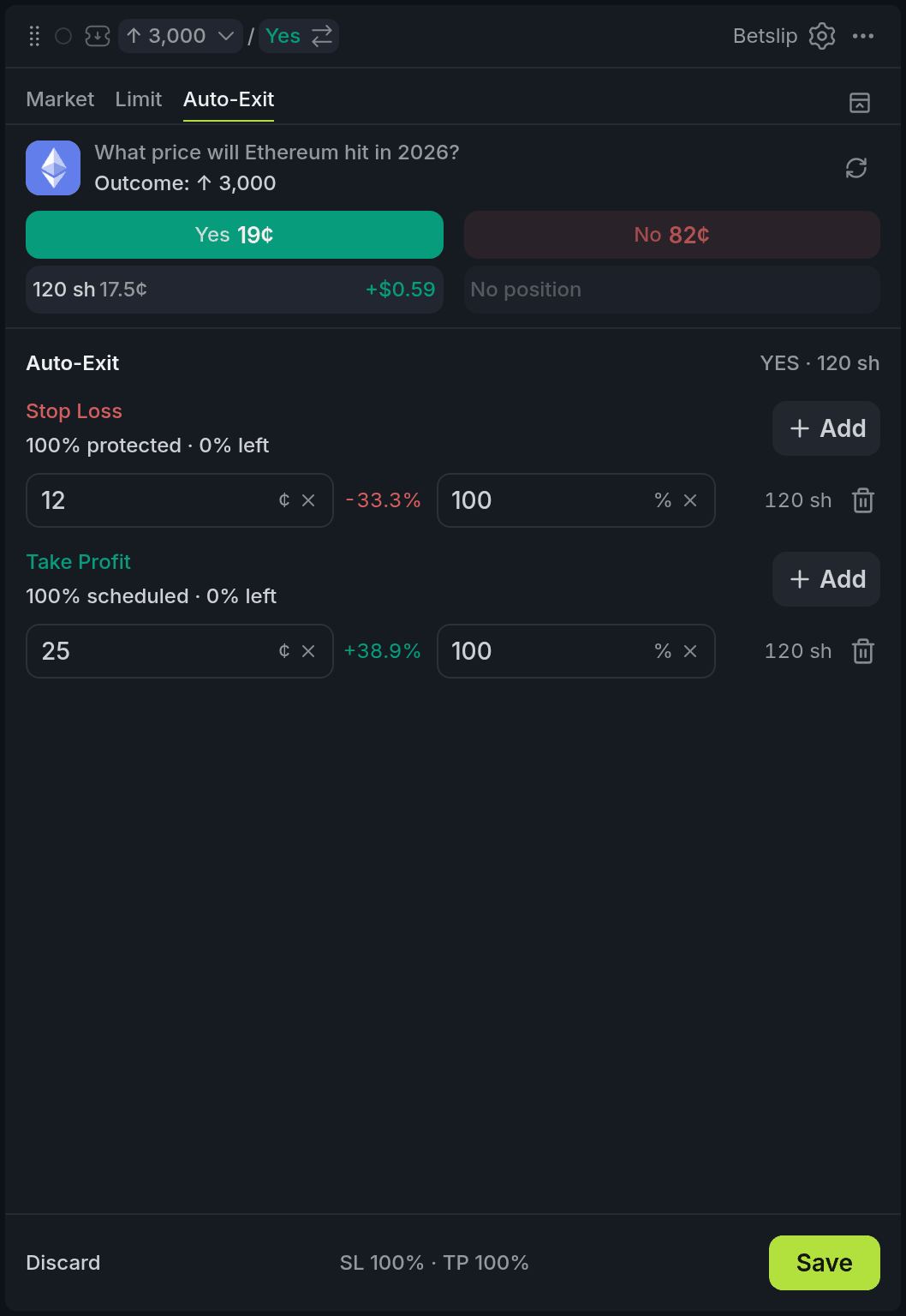
- 1Stop Loss: trigger and % of position
- 2Add another Take Profit
- 3Save the rules
With other widgets
- Click a price in the Orderbook: both columns get it as a limit price, already sized to the depth up to that level, on the Limit tab.
- Sell on a row in Positions brings that market here with the whole holding in Sell, ready for you to send.
- Yes/No here also switches the Orderbook, Ladder and Chart in the same colour.
Tips
- Want to walk away after a fill? Set a take-profit and a stop-loss on Auto-Exit right away, then close Pro.
- Scalping near the touch? Stay on Limit with Post only on, so nothing crosses the spread by accident.
Finish reading to complete this lesson
Extras
Flip
On crypto Up/Down, sports and esports markets, Flip appears on Market while you hold shares. It sells your whole side at market, then fills Buy on the other side with the proceeds. You send that buy yourself.
Confirming far-off limits
A limit priced more than 5¢ through the book asks you to confirm before it goes out, since that's usually a typo. Under Confirmations in settings, pick Off, Far or Always and set how far Far is.
The ticket's small controls
| Control | What it does |
|---|---|
| Hide market details | Folds the market title away. The Yes/No buttons and your positions stay in place. |
| Refresh positions | Reloads your position rows if they look out of date. |
| Lock and an amount | What your open orders hold: cash across all markets for Buy, shares of this side for Sell. |
| Cancels … sell orders | Shown when a sale needs shares that sit in your own sell limits. Those orders go first. |
| Fills … sh at once | A limit priced through the book: that much fills now, the rest rests. |
On crypto Up/Down markets, a timer next to the tabs counts down the window. In its last 30 seconds, the ticket warns you if you still hold shares, and once it closes, new orders are off.
General settings
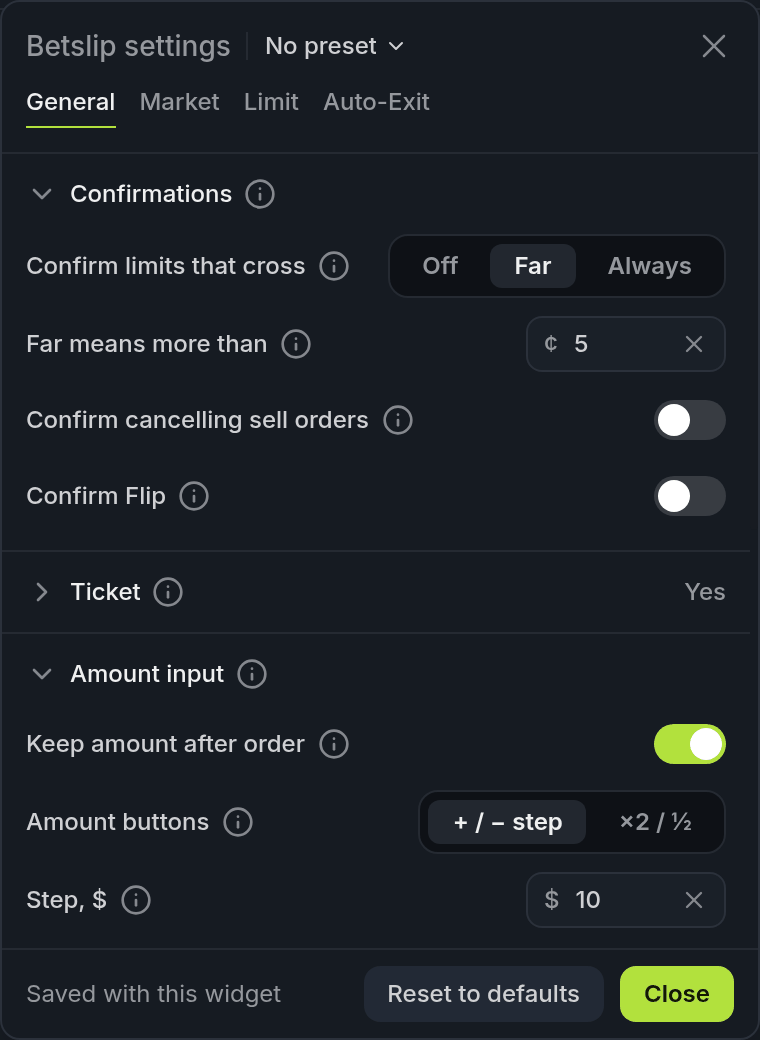
- 1Tabs: General, Market, Limit, Auto-Exit
- 2Confirmations
- 3Amount input
| Setting | What it does |
|---|---|
| Confirmations | Which actions ask first: limits that cross (Off, Far or Always), cancelling your sell orders to free shares, and Flip. |
| Ticket | Default outcome, Remember outcome, Click position to sell it, and Compact header. |
| Amount input | Keep amount after order, and whether the two buttons by the field step the amount (+ / −, $10 or 10 shares) or scale it (×2 / ½). |
| Advanced | How a sale frees shares from your sell limits: for which sells, which orders go first, and whether to shrink an order instead of cancelling it. Apply recommended puts it back. |
| Display | Show fee, and the amount in the other unit (≈ shares next to dollars). |
Market and Limit settings
| Setting | What it does |
|---|---|
| Market input / Limit input | The unit each column opens in. Limit also has Book click sets amount. |
| Quick amounts | The chips for each side. Set replaces the amount, Plus and Minus step it, Max fills everything. Also Fast buy and Fast sell. |
| Slippage | How far past the preview a market order may fill: 1, 2, 5 or 10¢, a custom value, or Off. |
| Limit price steps | How far + / − and the arrow keys move the price. Auto uses the market's tick. |
| Limit Price hotkeys | The chips under the limit price: Bid, Mid, Ask, or a ¢ or % offset. |
| Expiration | The default expiry and the options in the GTC menu. |
| Execution | Post only. |
Auto-Exit settings
| Setting | What it does |
|---|---|
| Use pending fills | Lets a rule react to trades that aren't confirmed on chain yet. |
| Confirmation (seconds) | 0 sells at once. Otherwise the rule waits that long, checks the bid again, and sells only if it's still past the trigger. |
If offline signing is off, saving a rule asks you to turn it on first.