Chapter 3 · Trading · Lesson 2 · 4 min
Orderbook
The live order book for one outcome, with depth at a glance, one-click trading and your resting orders.
The Orderbook shows every resting bidBidA resting order to buy. The best bid is the highest price any buyer is offering right now. and askAskA resting order to sell. The best ask is the lowest price any seller will accept right now. for one outcome, live. Use it to see where the liquidityLiquidityOrders resting in the book that others can trade against right away. sits and to trade straight from the prices. It shows one market, so link it to a colour group.
What you see
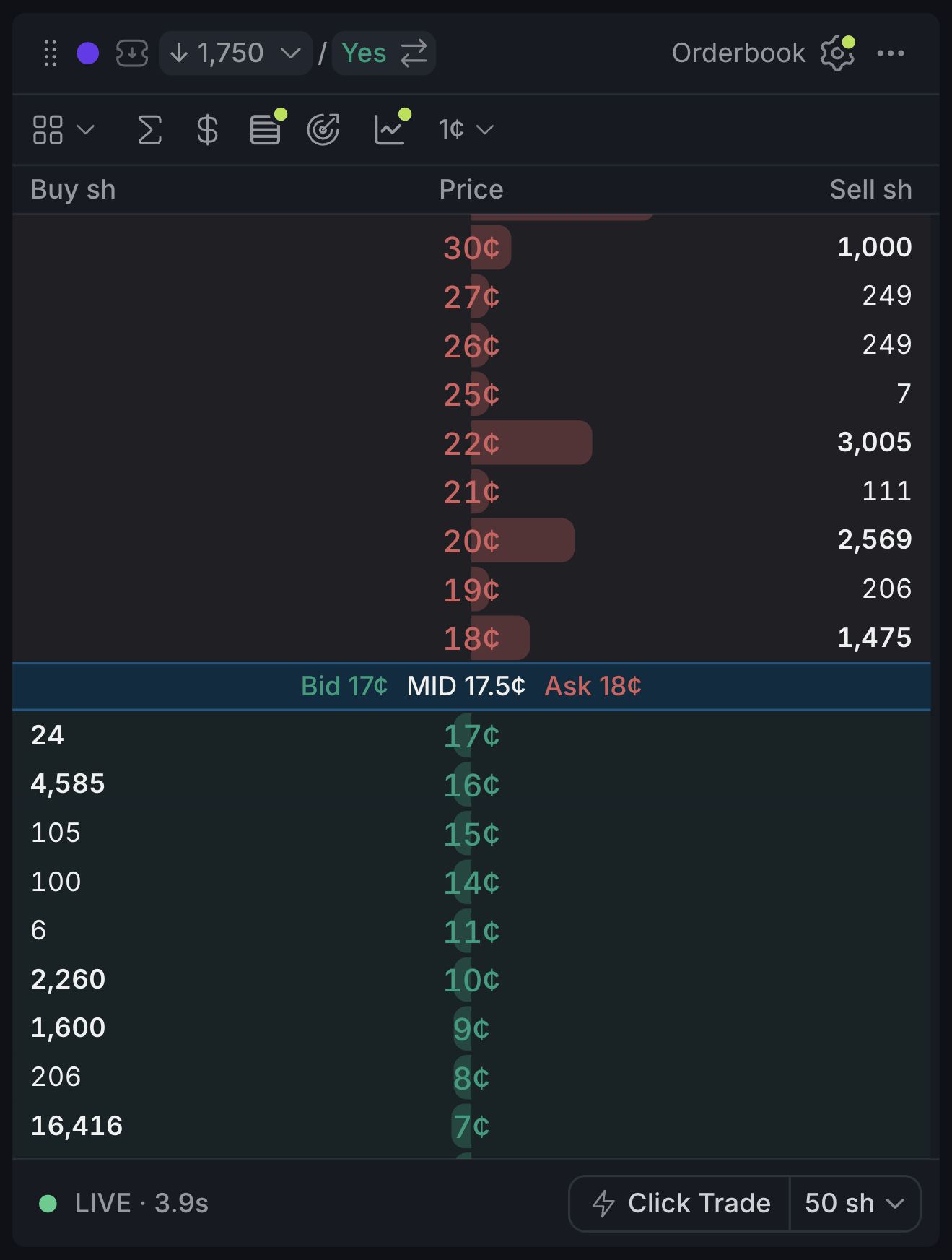
- 1Switch layouts here
- 2Asks: people selling. The best ask is at the bottom
- 3Best bid, mid and best ask, always in view
- 4Bids: people buying. The best bid is at the top
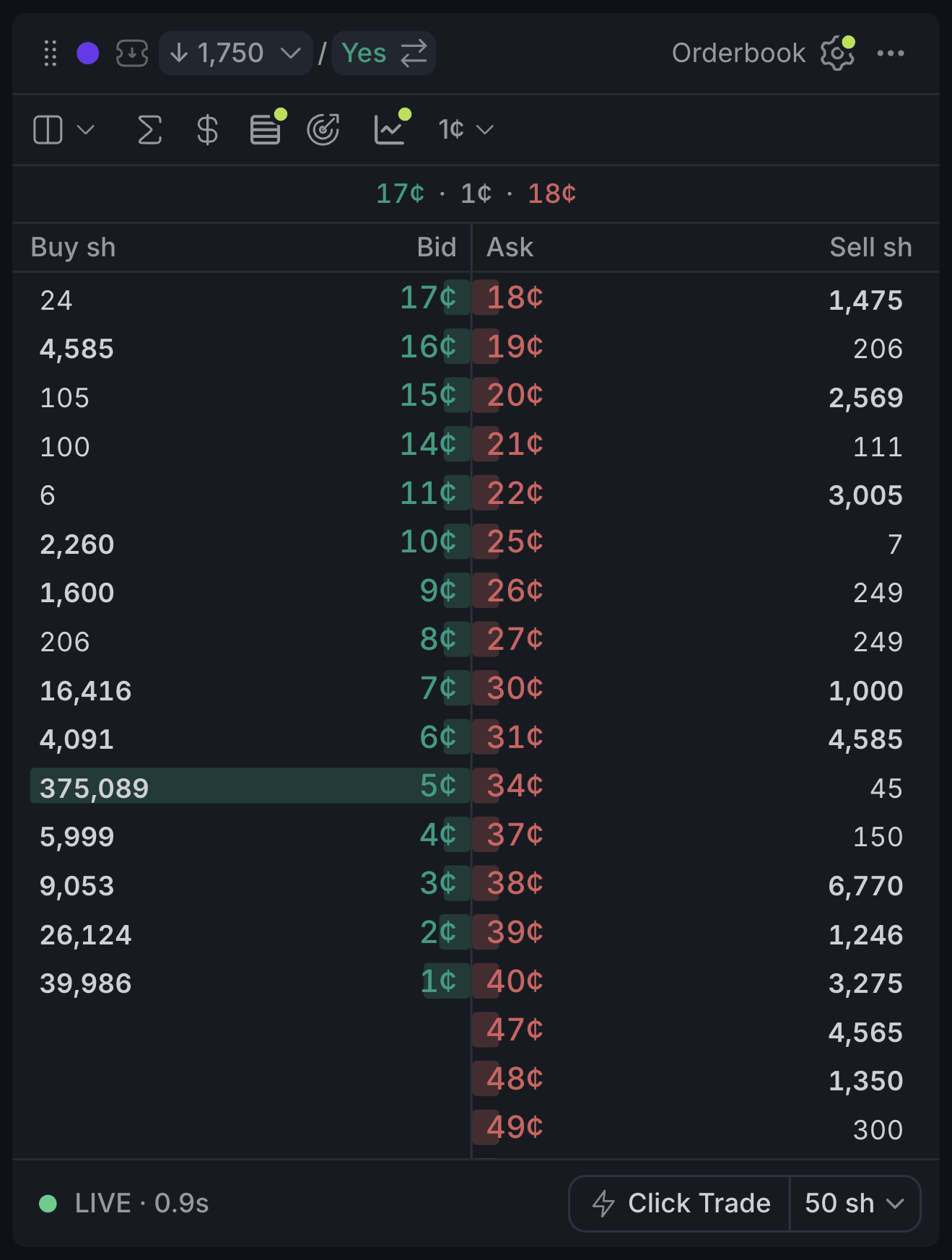
- 1Best bid, spread and best ask
- 2Bids, best at the top
- 3Asks, best at the top
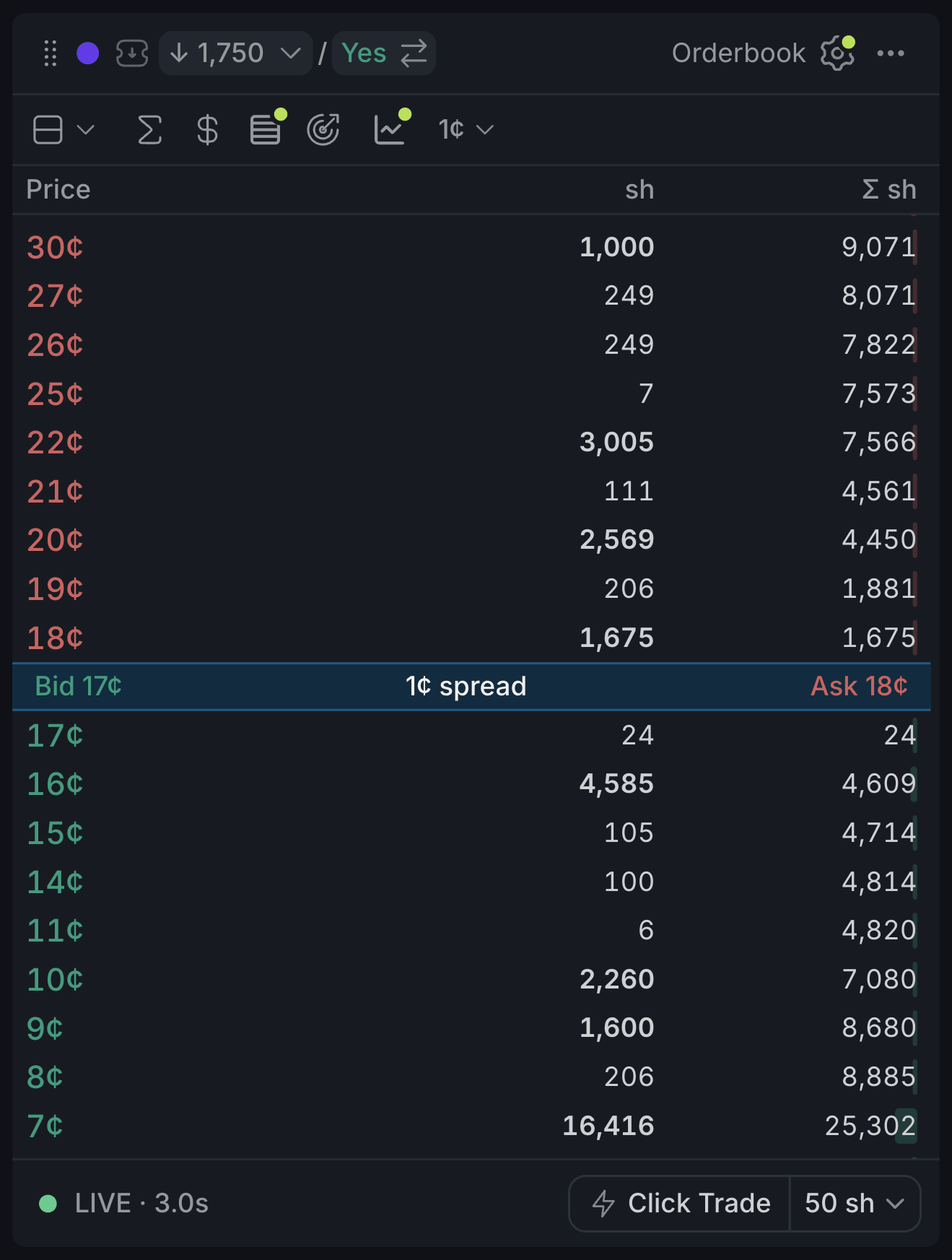
- 1Prices: asks above the line, bids below
- 2Running total from the best price
- 3Best bid, spread and best ask
Bars show the depthDepthHow many shares rest at each price. A deep book takes large orders without the price moving much. at each price, and big sizes (1,000 shares or more) are bold, so walls stand out. Your own orders sit on their rows as badges showing what's left to fill.
The toolbar changes how numbers read: Σ adds sizes up from the best price, $ shows dollars instead of shares, and 1¢ groups prices into bigger steps when the book is noisy.
Using it
Click a price to fill the Betslip
Out of the box, clicking a price places nothing. It sends that price to the Betslip in the same colour, where you check the order and submit it. It's the safe way to start.
Click Trade
Click Trade turns the book into a one-click trading surface: each click places a GTCGTCGood 'til cancelled: a limit order that stays in the book until it fills or you cancel it. limit orderLimit orderAn order to buy or sell at your price or better. Whatever doesn't fill right away waits in the book. at that price, no Betslip in between. Turn it on with Click Trade in the footer and set your size right next to it. Hover a price first and you'll see exactly what will be sent.
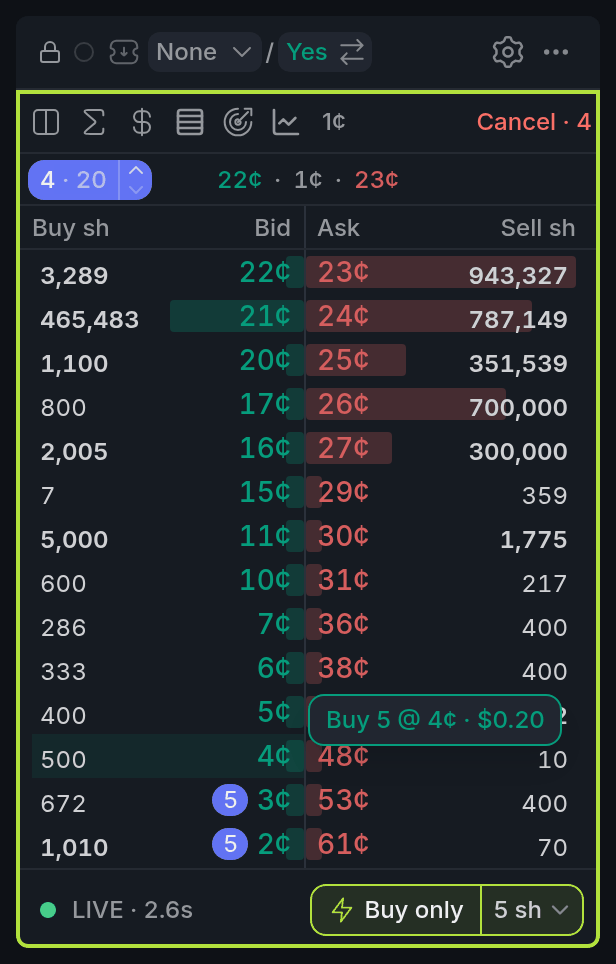
- 1Preview: exactly what will be sent
- 2Buy only: Click Trade is on
- 3Size: shares per click
- 4Your orders: click a badge to cancel
- 5Cancel · N: all orders on this outcome
A click on the other side of the touchTouchThe best bid and best ask together: the prices at the front of the book. fills straight away at the market. Pro asks you to confirm those clicks unless you turn that off.
Need a lot at once? Pick Sweep in the size menu: one click takes everything from the best price through the level you click.
Press Esc to turn Click Trade off.
Moving and cancelling orders
Click your order's badge to cancel it, or drag it to another price to move it. A moved order goes to the back of the queue at its new price.
Pausing the book
When the book moves too fast to hit a level, press Space to freeze it, or hold Shift to freeze it just while you aim. Press X to cancel your last order.
With other widgets
- A price you click goes to the Betslip in the same colour, with the size up to that level filled in too.
- The book always follows its colour's market. Pick a market anywhere in that colour and the book switches.
Tips
- New to the book? Pair it with a Betslip in the same colour and trade through that first. Move to Click Trade once the clicks feel natural.
- Before using Click Trade on a fast market, set Max $ per click in settings. One slip then can't cost more than you planned.
- Use Split to see deep into both sides at once, and Ladder when you're clicking near the touch.
Finish reading to complete this lesson
Extras
More toolbar options
| Control | What it does |
|---|---|
| ◎ | Recentres on the mid. The book follows the mid until you scroll. |
| Cancel · N | Cancels every order you have on this outcome. N is how many. |
More ways to manage orders
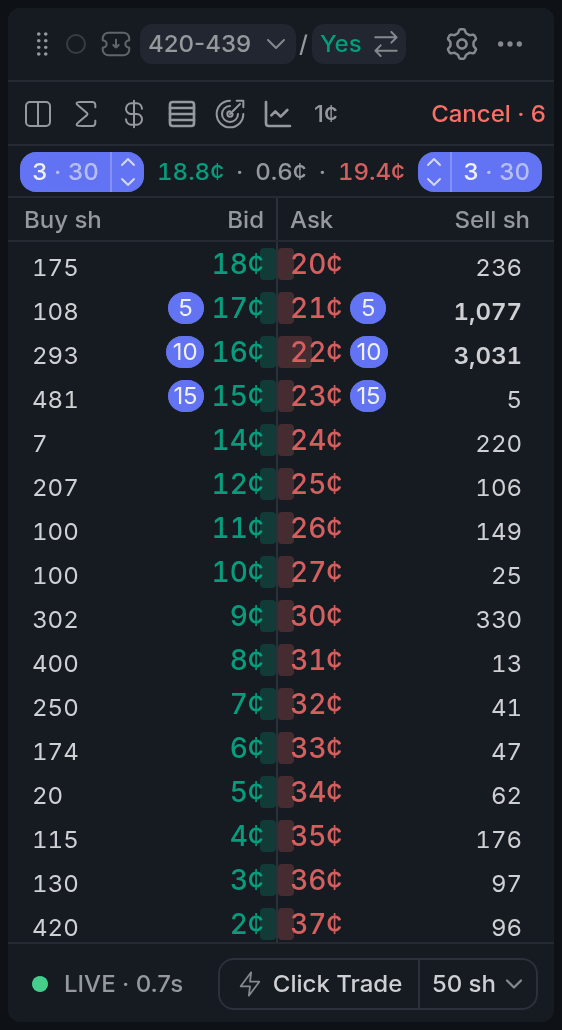
- 1Your order badge
- 2Cancel · N: cancel all
- 3Order bar with ▲ ▼
- Hold A while dragging a badge to move all your orders by the same number of ticks.
- Middle-click a row to cancel everything you have at that price.
- The order bar sums up your orders per side: ✕ cancels a side (click twice to confirm), ▲ ▼ move the whole side.
Display settings
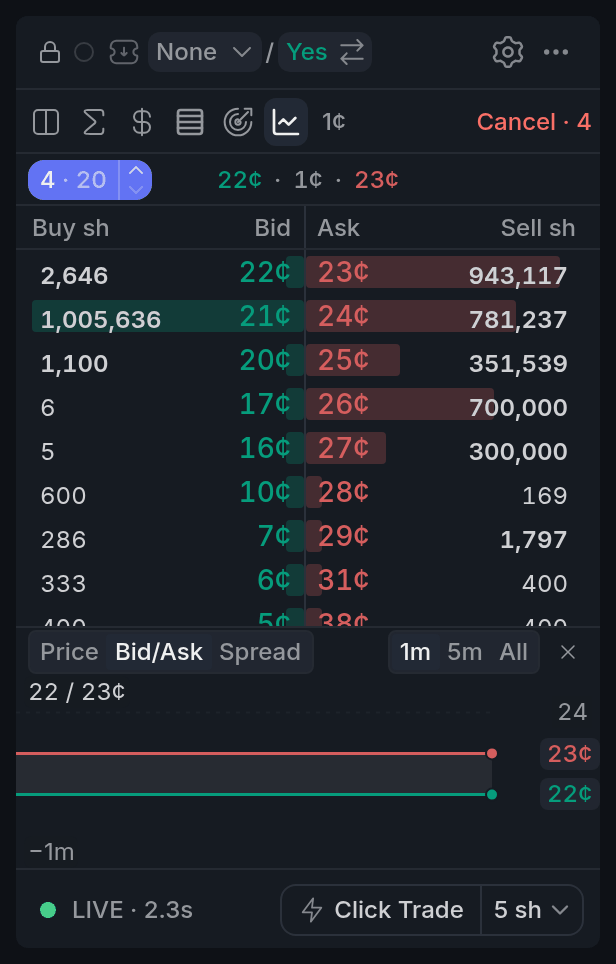
- 1Chart: Bid/Ask under the book
- 2Price / Bid/Ask / Spread
- 3Span: 1m / 5m / All
| Setting | What it does |
|---|---|
| Price format | Shows prices in cents, as odds (Decimal, American, Fractional, Hong Kong, Probability), or both. |
| Layout | Ladder, Split or Column. |
| Tick size | The price step the book groups by: the market's tick, 1, 2 or 5. |
| Cumulative from the touch | Running size from the best price. |
| Sizes in dollars | Level size in dollars. |
| Empty levels | Every price at the tick size, even where nobody is quoting. |
| Wall threshold, shares ≥ | The size from which a level shows in bold. |
| Order bar | Your per-side order summary. Highlight on hover lights up that side's orders in the book. |
| Show chart | A small chart under the book: Price, Bid/Ask or Spread, over 1m, 5m or All. |
Click Trade settings
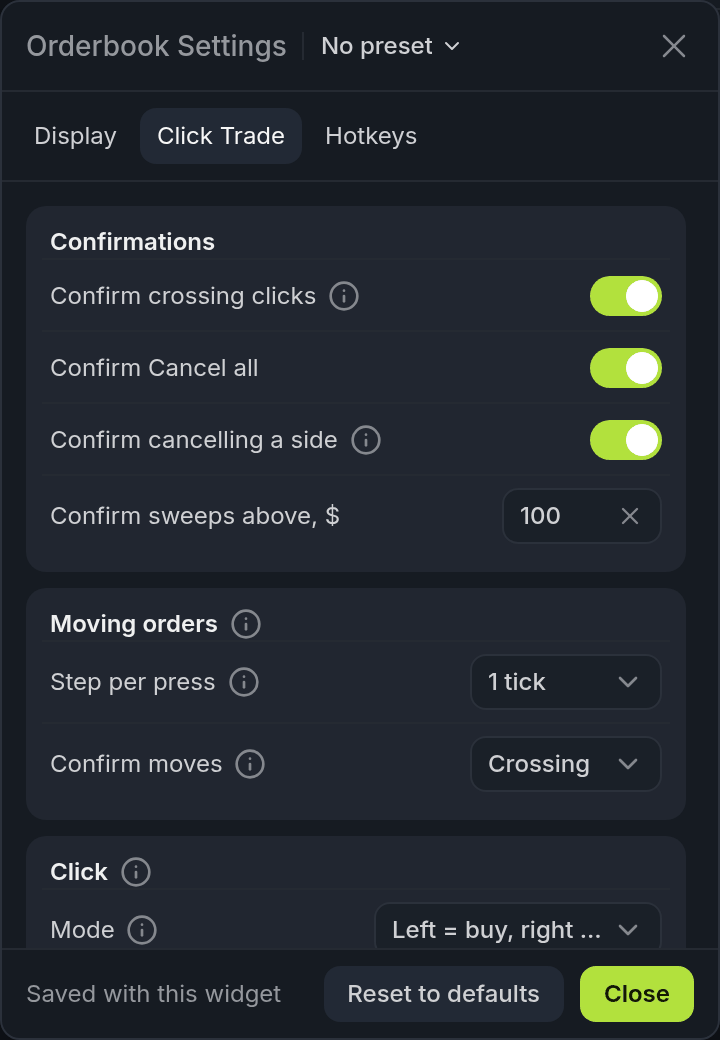
- 1Confirmations
| Setting | What it does |
|---|---|
| Confirmations | Which actions ask first: crossing clicks, Cancel all, cancelling a side, and sweeps above a dollar amount. |
| Moving orders | How far one press moves an order, and whether moves ask to confirm (Never, Crossing or Always). |
| Mode | Left = buy, right = sell, or Quick buy / Quick sell, where the button cycles off → buy → sell. |
| Click size | The size of each click, in Shares or USD. |
| Disarm | Turns Click Trade off on window blur, after an accepted click, or after a reject. |
| Guards | Max $ per click, max order notional, max open orders and max deviation from mid. All off until you set them. A guard that blocks a click shows its name on the Click Trade button. |
Prefer clicking only? Turn hotkeys off on the Hotkeys tab.