Chapter 3 · Trading · Lesson 3 · 4 min · Pro+
Ladder
A price ladder for fast trading at the touch. Every click is an order, sized by your stake.
The Ladder lists every price in one column, bids on the left and asks on the right, and every click on a size is an order. It's built for trading in and out around the touchTouchThe best bid and best ask together: the prices at the front of the book., fast. It follows its colour group's market.
What you see
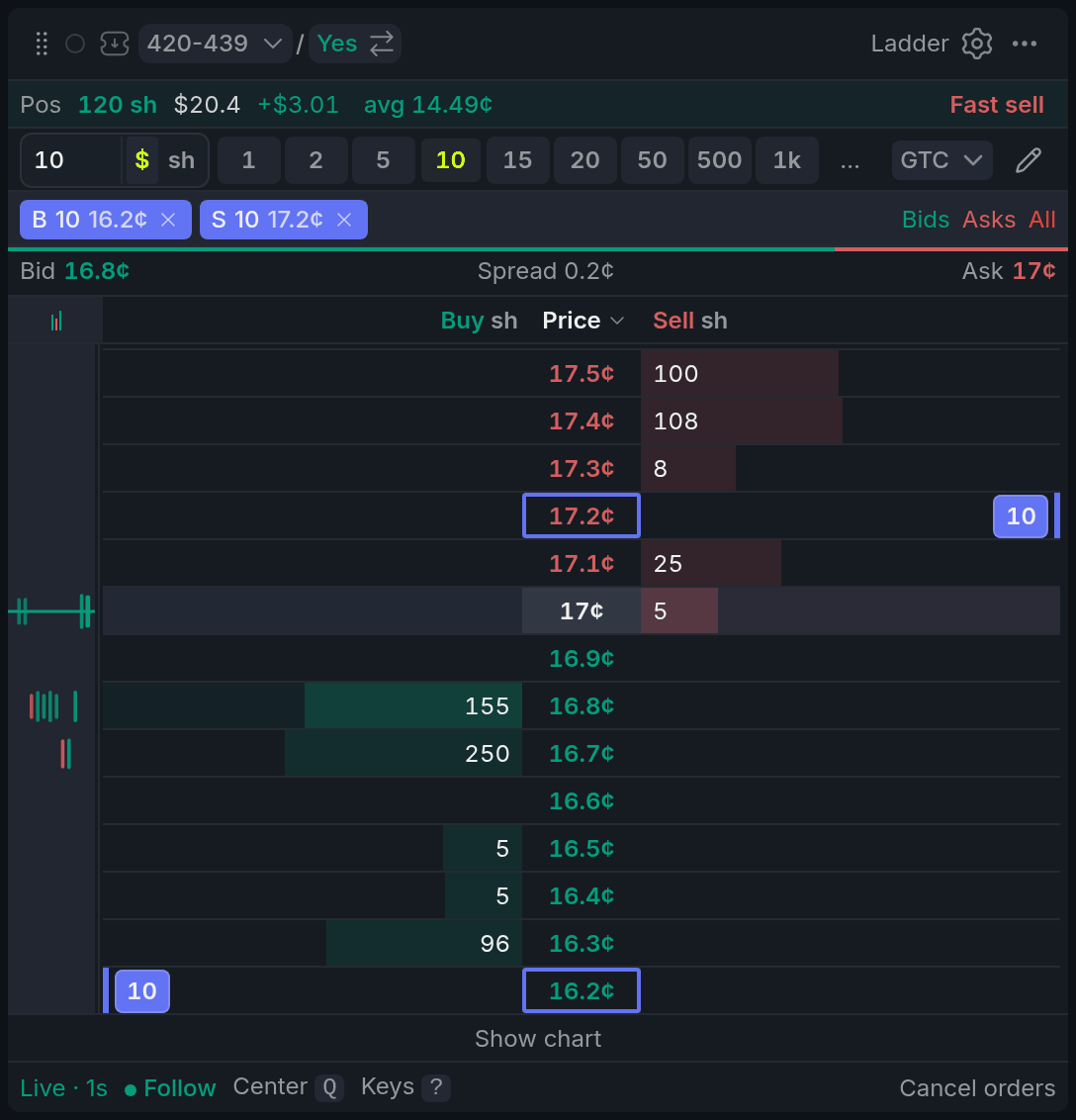
- 1Stake, presets and GTC
- 2Position with avg and Fast sell
- 3Last trade, kept centred
- 4Your order badge
- 5Live status, Center and Keys
The highlighted middle row is the last trade, kept centred; prices above it are red, below green. Sizes are in shares (click the Buy or Sell header for dollars), and walls are bold.
Your orders sit in their cells as badges, a green mark shows your average entry, and the left strip is the tape of recent trades.
Using it
Clicking to trade
There's no Click Trade switch: the Ladder is always live. Click a cell in the Buy column to place a GTCGTCGood 'til cancelled: a limit order that stays in the book until it fills or you cancel it. limit orderLimit orderAn order to buy or sell at your price or better. Whatever doesn't fill right away waits in the book. at that row's price, or in the Sell column to sell. Hover first and the cell says what will go out: join rests in the book, take fills now.
Every click on a size cell sends a real order. One that would fill at once, like buying at the ask, needs a second click on the same cell. Want it stricter? Turn on Double-click to send.
Each order is sized by the stake at the top ($10 by default): type it, pick a preset, or switch to shares with $ / sh. The GTC menu beside it sets an expiry. Buys never spend more than your free cash, and Sell only sells shares you hold.
It has the same guards as the Orderbook, like Max $ per click. If quotes go stale, it won't trade until fresh prices arrive.
Your orders
Click your badge to cancel it, or drag it to another price; a move re-posts the order, so it loses its place in the queue. Right-click a price to cancel everything there. In the chip row above the book, Bids, Asks and All cancel in bulk.
Getting out
Fast sell in the position row sells all your free shares with a limit at the best bid, after asking. Whatever the bid can't absorb rests there as a sell order.
Pausing and recentring
When the book moves too fast, hold Shift to freeze it while you aim. Q brings the last trade back to the middle.
With other widgets
- The Ladder follows its colour's market and outcome: switch Yes/No in the Betslip and it follows.
- Clicks here never go to the Betslip; the Orderbook does that.
Tips
- Quoting both sides? Press J to join the best bid and L to join the best ask with your stake, then [ and ] to step the order under the cursor as the book moves.
- Scalping a tight market? Set Keep centered to Mid. The touch stays on the same rows, so your clicks land where you aim.
Finish reading to complete this lesson
Extras
Trading from the keyboard
With the Ladder focused, ↑ ↓ move a cursor, Enter buys and ' sells at it, and Space cancels your orders on that row. 1–9 pick a stake preset and + − step it. Press ? for the full list.
More ways to manage orders
- Hold A while dragging a badge to move all your orders by the same number of ticks. Alt ↑ ↓ does the same from the keyboard.
- [ and ] move the order under the cursor one step. J joins the best bid and L the best ask with your stake.
- Middle-click a row to cancel everything you have at that price.
- P sells half your free shares at the best bid and H sells all of it.
- Click avg in the position row to jump to your entry price.
What the footer says
| Status | What it means |
|---|---|
| Live / Stale / Reconnecting | Whether quotes are fresh. Trading stops until they are; Refresh reconnects. |
| Live / Hold | Live keeps the last trade centred. Scroll and it holds your view; click it or press Q to recentre. |
| Link | Shows while you hold A: a drag moves every order. |
Ladder settings
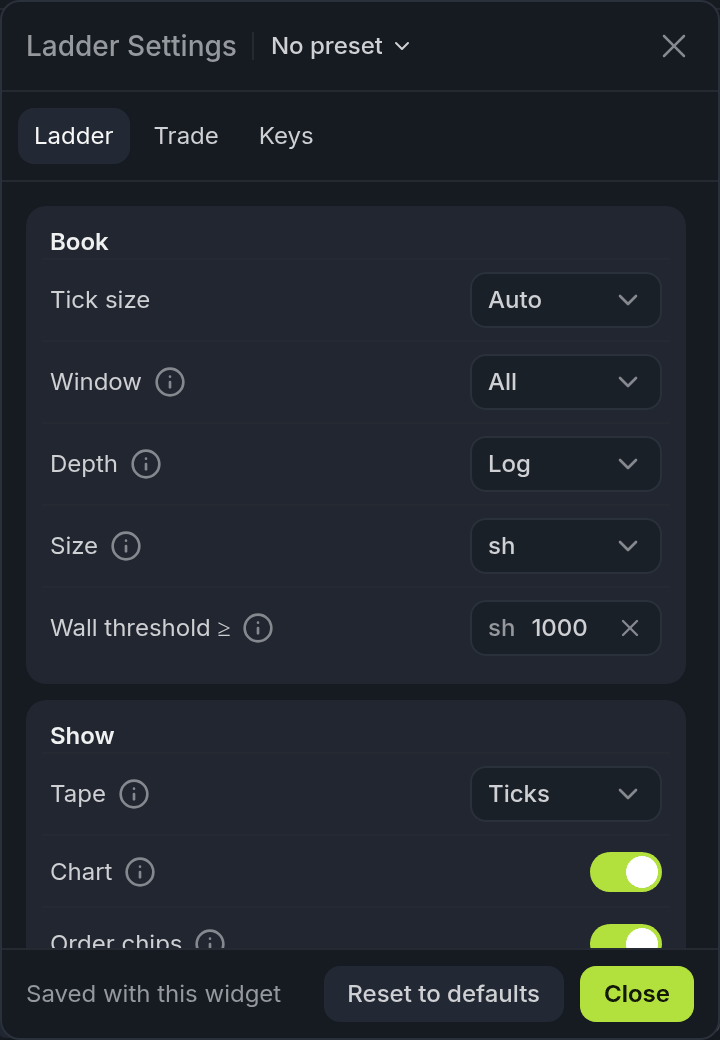
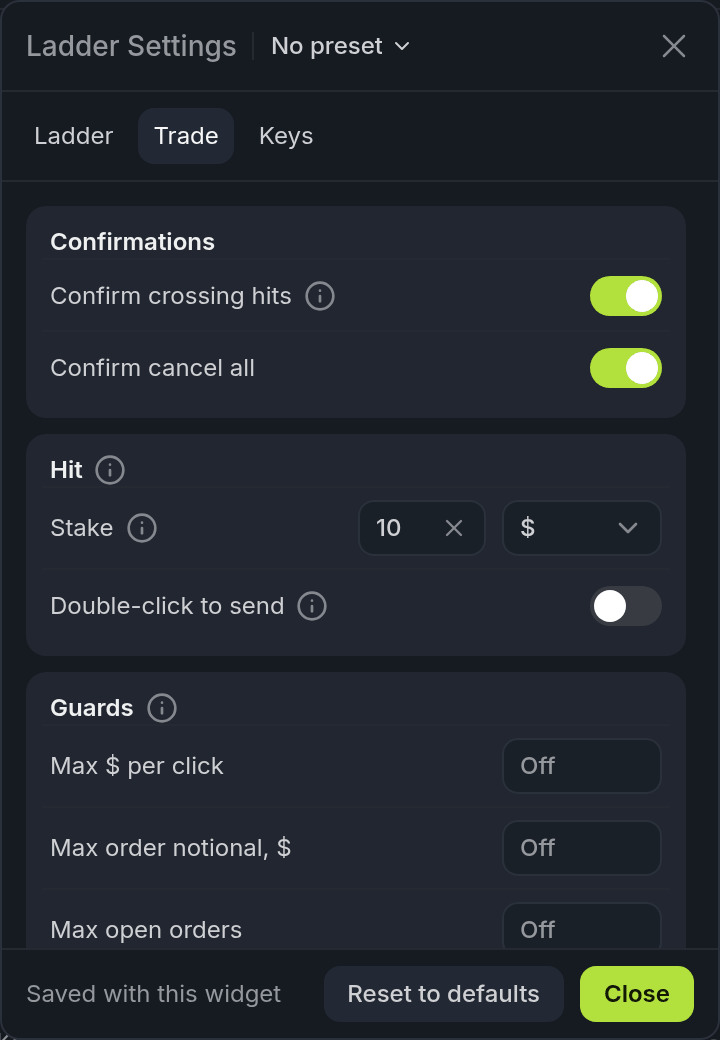
- 1Confirm crossing hits
- 2Double-click to send
- 3Guards
| Setting | What it does |
|---|---|
| Tick size | Groups prices into bigger steps. Auto follows the market's tick. |
| Window | The full book, or only ±8, ±16 or ±24 ticks around the last trade. |
| Depth | How the bars scale: Log keeps small sizes visible, Lin is raw, Cum adds up from the touch. |
| Size | Shows book sizes and your orders in shares or dollars. |
| Wall threshold ≥ | The size from which a level shows in bold. |
| Tape | The left strip: recent trades (Ticks), volume at each price (Vol), both, or Off. |
| Chart, Order chips, Traded, Δ% | A small price chart under the book, your order chips, volume traded at each price, and distance from the last trade. |
| Keep centered | Off, Last or Mid. Both pause while your pointer is on the book, so prices don't jump under a click. |
| Linked hover | Lights up the matching price on the other side (1 − price). |
Trade settings
| Setting | What it does |
|---|---|
| Confirm crossing hits | The second click for orders that fill at once. Also asks before crossing moves and Fast sell. |
| Confirm cancel all | Asks before cancelling every order. |
| Stake | Whether the stake is in dollars or shares. |
| Double-click to send | One click does nothing, two send. The keyboard still uses Enter and '. |
| Guards | Max $ per click, max order notional, max open orders and max deviation from mid. All off until you set them. |
On the Keys tab, Enable hotkeys turns the keyboard off if you only want to click.