Chapter 2 · Discovery · Lesson 9 · 2 min
Markets
Every market of the event your colour is on, with live Yes and No prices and one-click switching.
Markets lists every market of one event: each candidate, each line of a match, each price bracket. It follows the event your colour is on, so it needs a market first. Click a market and everything in the widget's colour follows along.
What you see
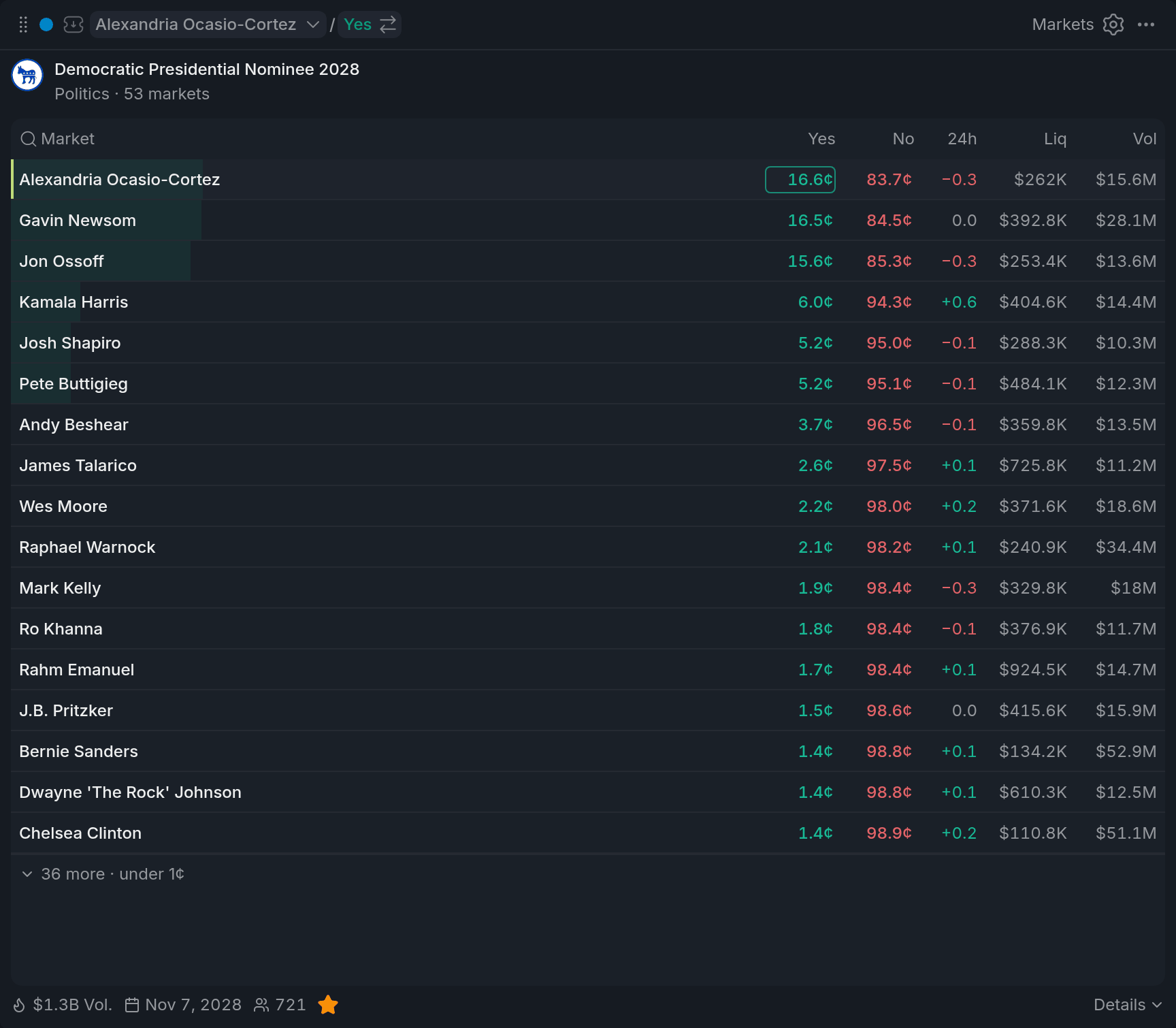
- 1Yes price: click drafts a buy
- 2Chance fill
- 3Under 1¢ fold
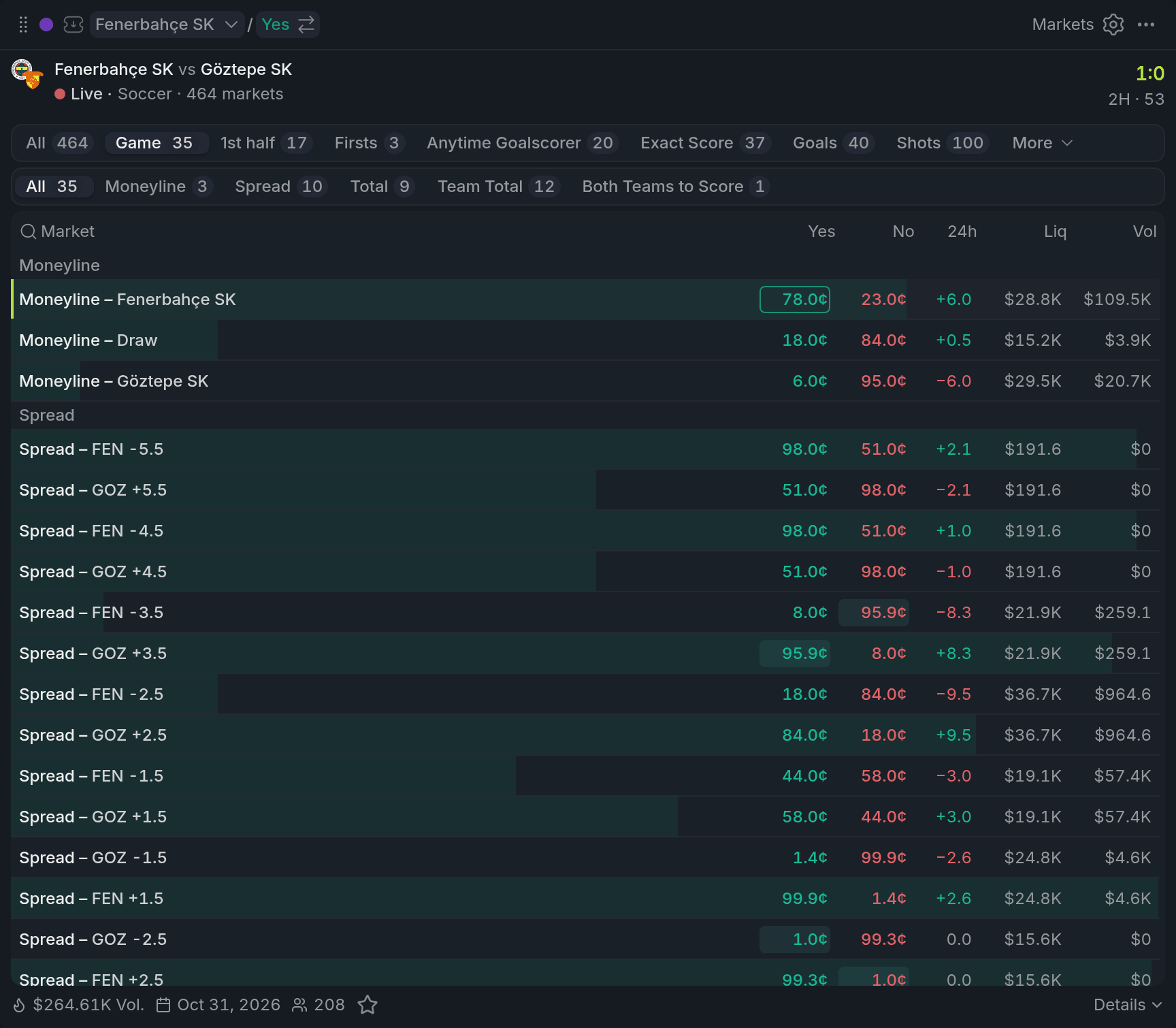
- 1Period tabs
- 2Type lanes
- 3One row per side
Each row shows the market, its Yes and No prices, the 24-hour change in points, and on a wide widget its liquidity and volume. Prices are what a buy costs right now. A faint fill behind each row grows with its Yes chance, so the favourites read at a glance.
On a match, tabs split the markets by period or map (Game, 1st half, Map 1…) and then by type. A market with two named sides, such as two teams or Over and Under, gets one row per side.
Your positions and resting orders sit under their row, and coloured dots on a price show which sides your other colour groups are on. Long shots under 1¢ fold into one row at the bottom, and settled markets into a Resolved group that names the winners.
Using it
Switch markets
Click a row to move your colour to that market. Click a Yes or No price instead and it also puts a limitLimit orderAn order to buy or sell at your price or better. Whatever doesn't fill right away waits in the book. buy at that price into the Betslip in the same colour. Nothing is sent until you set an amount and send it from there.
Sort and search
Every column header sorts; click again to flip it, and the reset arrow brings back the event's own order. The magnifier next to Market searches every tab at once, so you can type a team or a line without hunting for it.
With other widgets
- A click here switches the Chart, Orderbook, Betslip and anything else in the same colour, and a price click fills in the Betslip too.
Tips
- Trading a multi-outcome event, like an election or a price ladder? Put Markets next to an Orderbook and Betslip in one colour and move between outcomes with a click.
- Want the price closer to the real chance? Switch Price to Mid in settings. A click still sends the buy price to the Betslip.
Finish reading to complete this lesson
Extras
Details
The footer shows the event's volume, its end date and its trader count, plus a star to save the event. Details opens its category, number of contracts, liquidity, comments and resolution source.
Settings
| Setting | What it does |
|---|---|
| Price | What the Yes and No cells show: Ask (the buy price), Mid or Last (the last trade). |
| Chance fill | Tints each row from the left as far as its Yes chance. |
| Tick flash | Flashes a cell when its live price ticks. |
| No, 24h change, Liquidity, Volume | Turn columns on or off. Market and Yes always show, and a narrow widget drops 24h, Liq and Vol on its own. |
| Fold the tail | Folds open markets under 1¢ into one row at the bottom. Not while searching. |
| One-line names | Cuts long names with "…" instead of wrapping; the full name shows on hover. |
| Positions | Shows your fills under each row. |
| Orders | Shows your resting orders under each row. |