Chapter 2 · Discovery · Lesson 5 · 3 min
Calendar
Matches, crypto windows and market expiries on one timeline, for planning a session and opening any event.
The Calendar puts what's coming on a timeline: matches, crypto windows, and when other markets expire. Use it to plan a session, catch what's live right now, and send any event to your board.
What you see
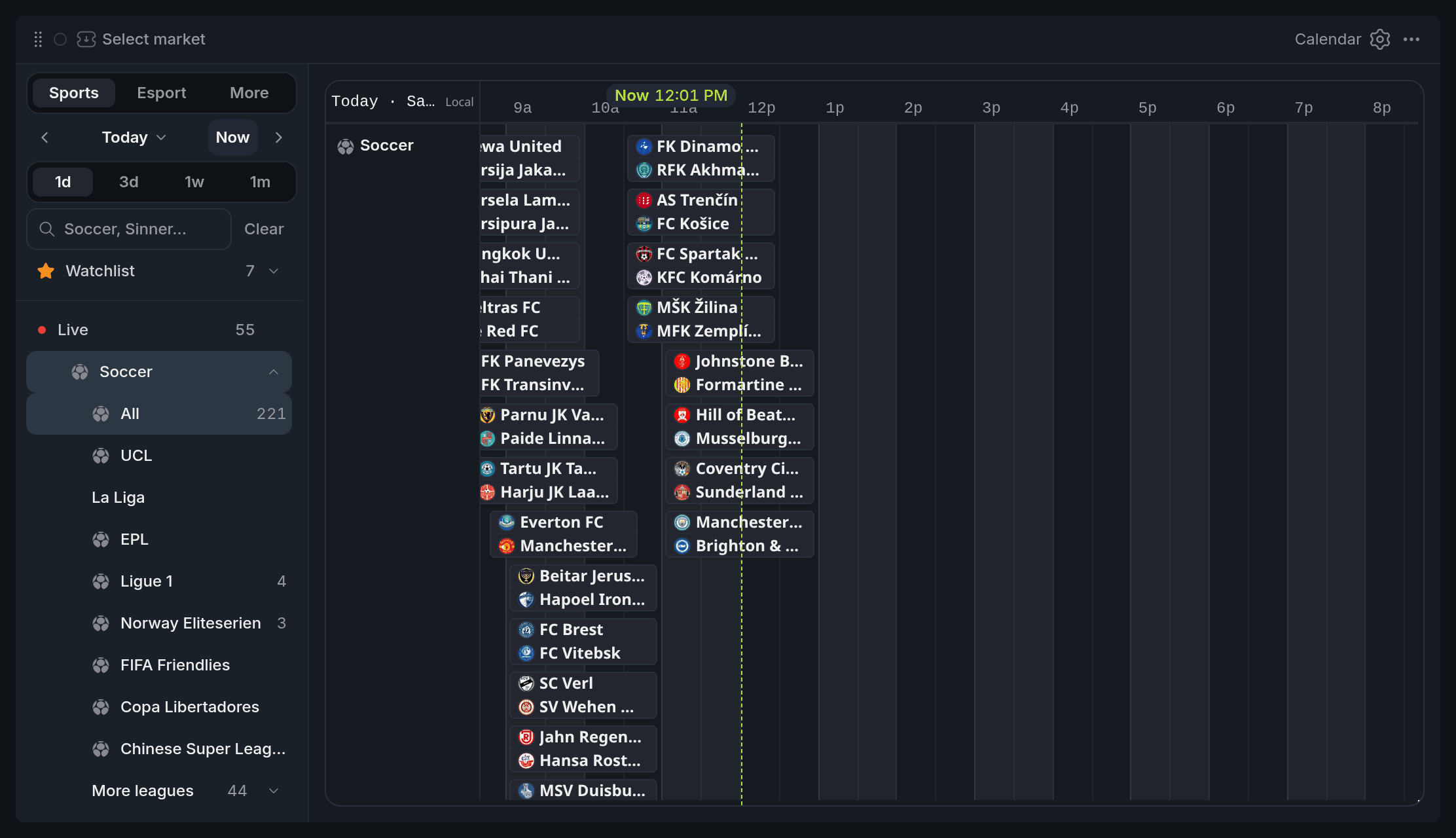
- 1Board: Sports, Esports or More
- 2Time span
- 3Watchlist
- 4A live match
- 5Now line
On the left are the board switch, the date and a catalog of leagues or categories, each with its event count. On the right is the tape: one row per league or category, with each event drawn as a band from its start to its end. Live matches carry their score, and a line marks the current time.
Prices on the cards are reference quotes and can lag the live market. Times are in Eastern time until you change Timezone in settings.
Using it
Pick a board
Sports and Esports show matches. More holds Crypto and the other categories, where bands show when each market expires. On Sports, pick a sport or a league in the catalog to fill the tape, or press Live to see every match in play, whatever league you picked.
Type a team, league or asset in the search box to narrow it further.
Move through time
Switch between Day, 3d, Week and Month. In Month, click a day to open it on the tape.
Open an event
Click a band to see its details: when it runs, its league or market, and its prices (the two sides of a match, or Yes and No). Open market sends it to a colour group, and every chart, book and betslip in that colour switches to it. Open event opens its event page.
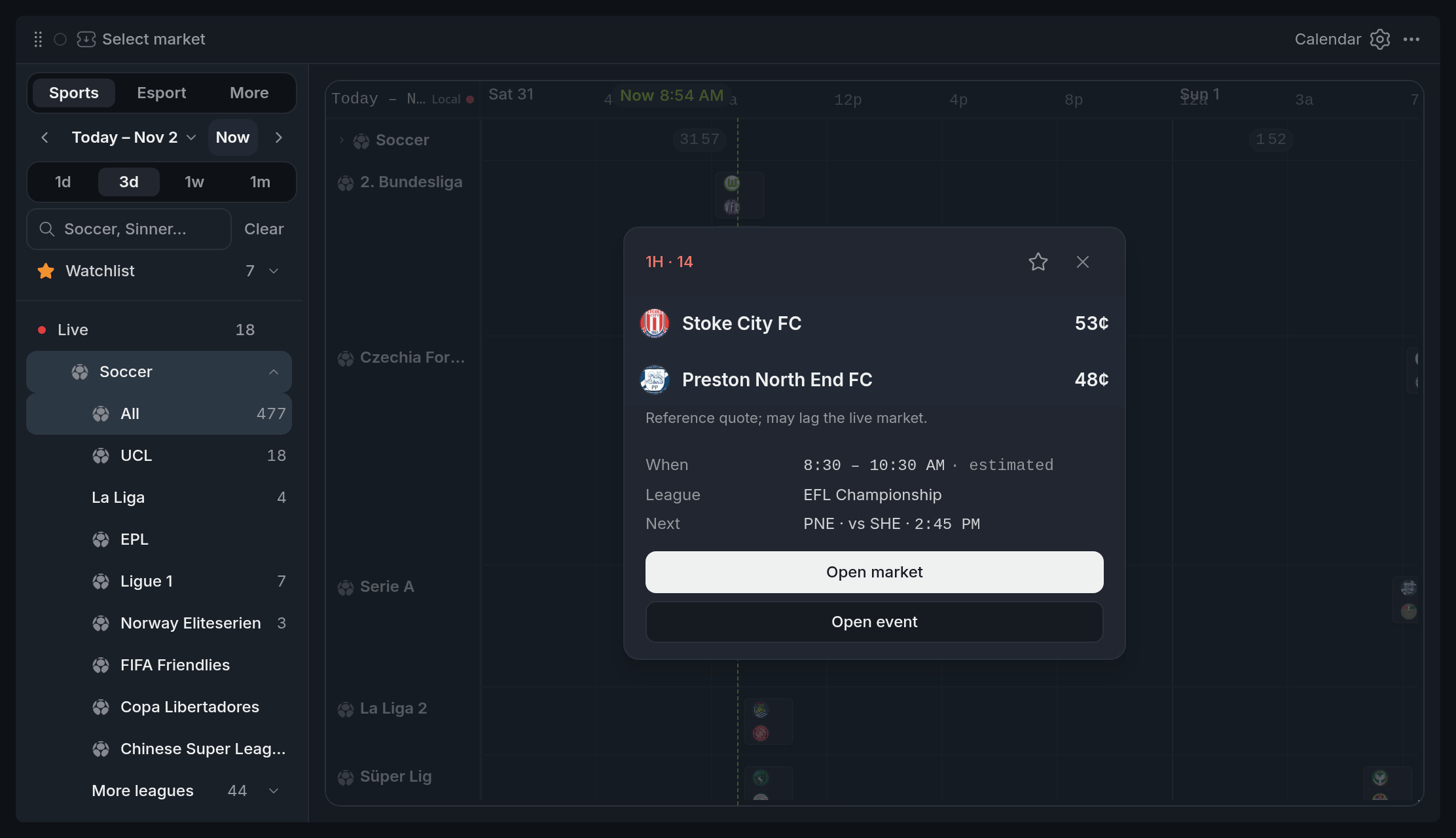
- 1Add to watchlist
- 2Outcome prices
- 3Open market
Watchlist
Star a match in its details, or a league in the catalog, and it shows up under Watchlist in the catalog, on every board. Turn on Match alerts in settings for a heads-up 15 minutes before a watched match and when it goes live.
With other widgets
- Put a Chart, Orderbook, Betslip, Holders or Live Trades in the Calendar's colour, and clicking a band switches them straight away. With none of them there, Open market asks which colour to use.
Tips
- Planning an evening? Open Sports on Week, star the matches you care about, then switch to Day and work from Watchlist once play starts.
- Trading from London or Kyiv? Set the timezone to Local first, or every kickoff reads in New York time.
Finish reading to complete this lesson
Extras
More on the tape
- On Crypto, pick which windows to show: 5 min, 15 min, 1 hour, 4 hour or Daily.
- On the tape, the wheel scrolls rows. Hold Shift (or swipe sideways on a trackpad) to move along the time axis.
- On Crypto and other categories, the Live button reads Now or Expires and jumps to the current window or the next expiry.
- On a narrow widget, the catalog folds into a bar above the tape.
- Finished matches drop out of Watchlist on their own. Remove finished unstars them all at once.
- Match alerts show inside the widget. If the browser tab is hidden and you allowed notifications, they arrive as a browser notification too.
Settings
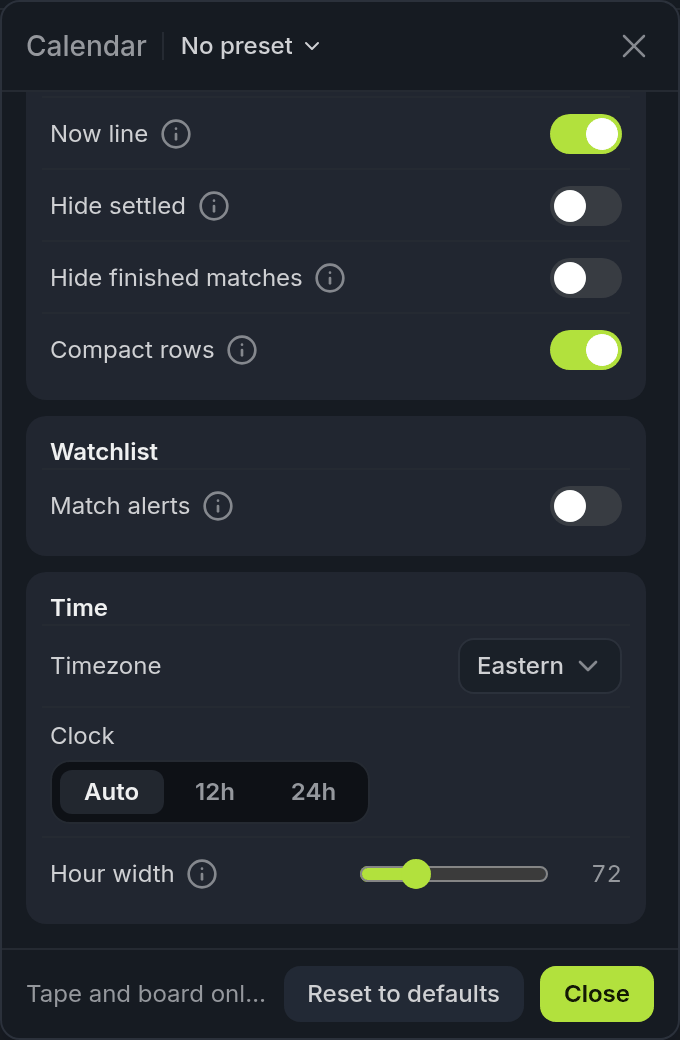
- 1Timezone
| Setting | What it does |
|---|---|
| Follow now | Keeps the day tape on the live edge while you're on today. |
| Now line | Shows the current time on the day tape. |
| Hide settled | Drops resolved crypto and other contracts. |
| Hide finished matches | Hides Sports and Esports matches once their result is confirmed. |
| Compact rows | Tighter bands on the day tape. |
| Match alerts | A heads-up 15 minutes before a watched match and when it goes live. |
| Timezone | Local, Eastern, Central, Pacific, London, Paris, Tokyo or UTC. Eastern by default. |
| Clock | Auto, 12h or 24h. |
| Hour width | How wide an hour is on the day tape. |