Chapter 2 · Discovery · Lesson 8 · 2 min
Watchlist
The events you've starred, with live prices for every market in them. Prioritise the few you trade most.
The Watchlist keeps the events you care about in one place, with live prices for every market in them. Click a market and everything in the widget's colour follows along.
What you see
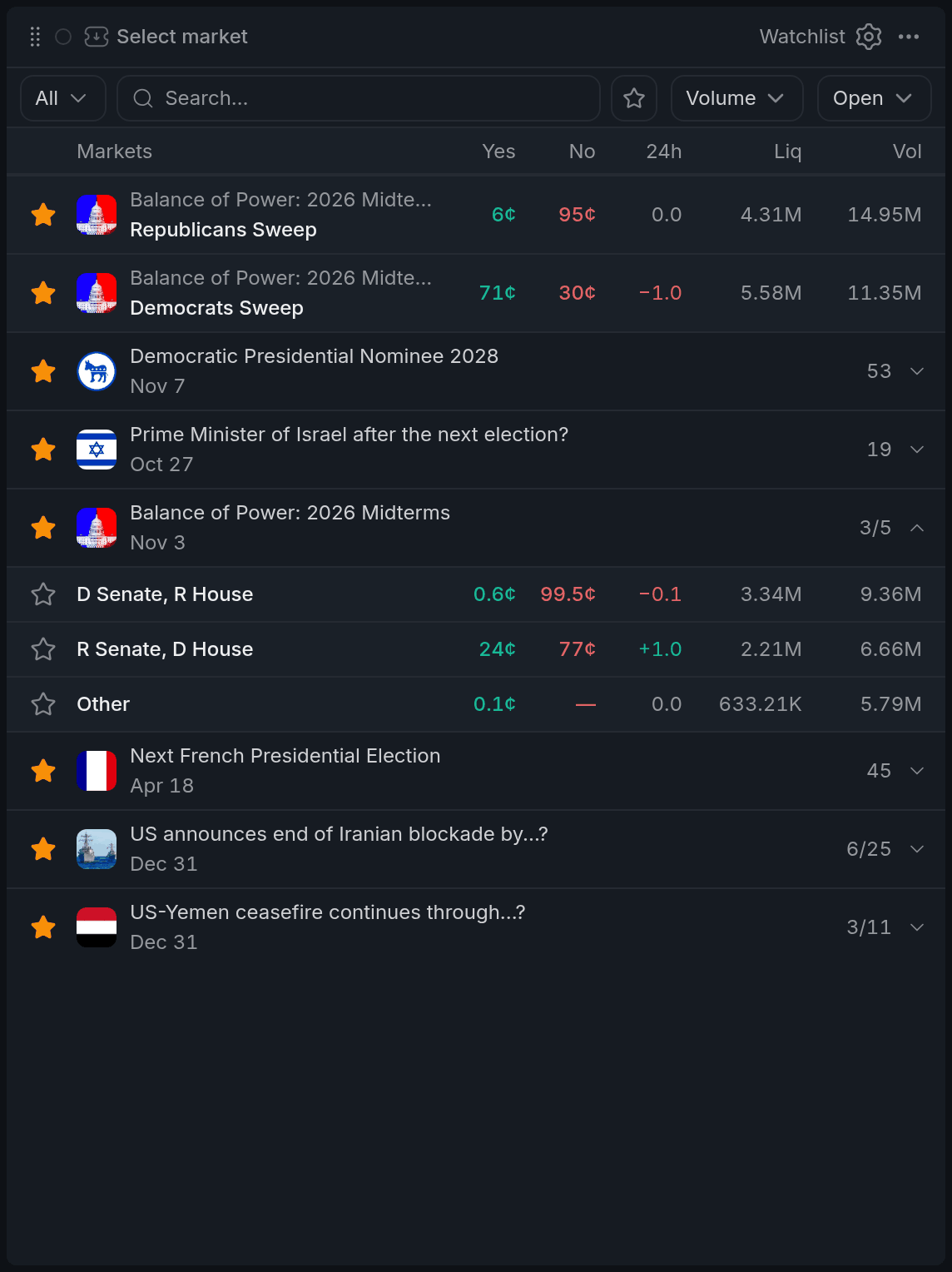
- 1Priority market's star
- 2Show priority markets only
- 3Event star (account-wide)
- 4Buy price
Every event you've starred on your account shows up here: from the Sports Scanner, the Calendar or the event page on the site. Each event is a folded group with its live score and clock, or its date. Click the header to unfold its markets.
A market row shows the price to buy each outcome, the 24-hour change, and on a wide widget liquidity and volume. When there's no live offer to buy, the price shown is a reference one.
Using it
Prioritise markets
Star a market and it moves out of its group to the top of the list, where it always stays in view. The ★ button in the toolbar then shows only those priority markets, for the handful you're actually trading.
Changed your mind? Unstar it, and Undo at the bottom brings it back.
Find and sort
Filter by category (Sport, Crypto, Macro, Politics or Other) or keep Live only. Sort by 24h, Volume or Time. Switch from Open to Closed to see how the events you watched have settled.
Pick a market
Click a row to load that market into your colour, or click a price to load it with that outcome picked.
The star on an event's header is the same star as on your account. Unstarring it here removes the event from your saved events everywhere, not just from this widget.
With other widgets
Tips
- Building a slate for tonight? Star the matches in the Sports Scanner first; they're all here when you sit down to trade.
- Keep one Watchlist on priority markets only, next to an Orderbook and Betslip in the same colour, and switch between your trades with one click.
Finish reading to complete this lesson
Extras
Hidden markets
Unstar a single market from market search or the Screener while its event is on your list, and that market drops out of the Watchlist. The rest of the event stays. Hidden · N above the list opens the hidden markets, and Restore brings one back. Starring the market again does the same.
Keyboard
With the widget focused, J and K move between rows, Enter loads the selected market, and S stars or unstars it.
Settings
| Setting | What it does |
|---|---|
| Event logos | Logos on group headers and priority markets, when the widget is wide enough. |
| Event status | The live score and clock, or the date, under each event title. |
| Market type | Moneyline, spread or total next to each sports market. |
| 24h change | Shows or hides the 24h column. |
| Liquidity | Shows or hides the liquidity column. |
| Volume | Shows or hides the volume column. |