Chapter 2 · Discovery · Lesson 1 · 4 min
Sports Scanner
Every match across sports and esports with its main prices. Filter the slate and send a price to your board.
The Sports Scanner lists live and upcoming matches across sports and esports, each with its main prices on one row. Use it to find the match to trade: click a price and every widget in the scanner's colour switches to that outcomeOutcomeOne side of a market you can trade, such as Yes or No, or one of two teams..
What you see
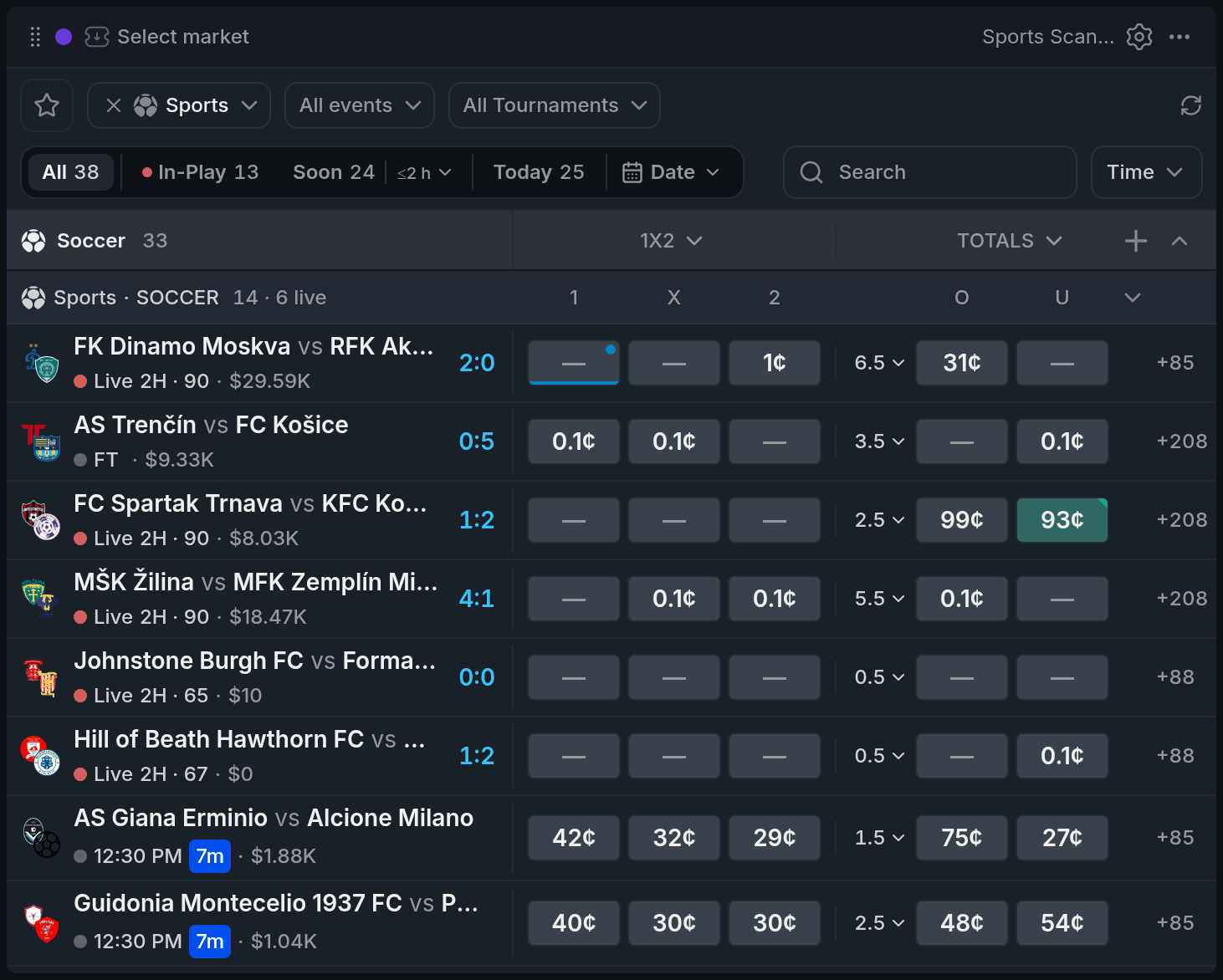
- 1Sport, league and tournament
- 2Time filter
- 31X2
- 4Another colour group's dot
Each tile shows what it costs to buy that outcome right now. The column header names the market: 1X2 or WINNER, TOTALS, HANDICAP, BTTS and so on. Live matches carry a red dot and the score.
A green P on a tile means you hold that outcome, and an amber number counts your resting orders. Hover the tile for your size, average price and PnL. Small coloured dots mean another colour group on your board is showing that outcome.
Tiles flash green or red when a price ticks, while rows hold still under your pointer so nothing jumps as you click.
Using it
Narrow the slate
Pick a sport, a league and a tournament with the chips at the top. The time bar filters by kick-off: In-Play, Soon (the next 2 hours, adjustable) and Today, each with its match count, or any day from the Date menu.
★ shows every match and tournament you've starred, whatever the filters. Mine keeps only the matches where you have a position or an order.
Pick a price
Click a tile and that outcome becomes your colour's market. A click never places an order.
To send it to a different colour, right-click the tile and press 1–6. Enter repeats the last group.
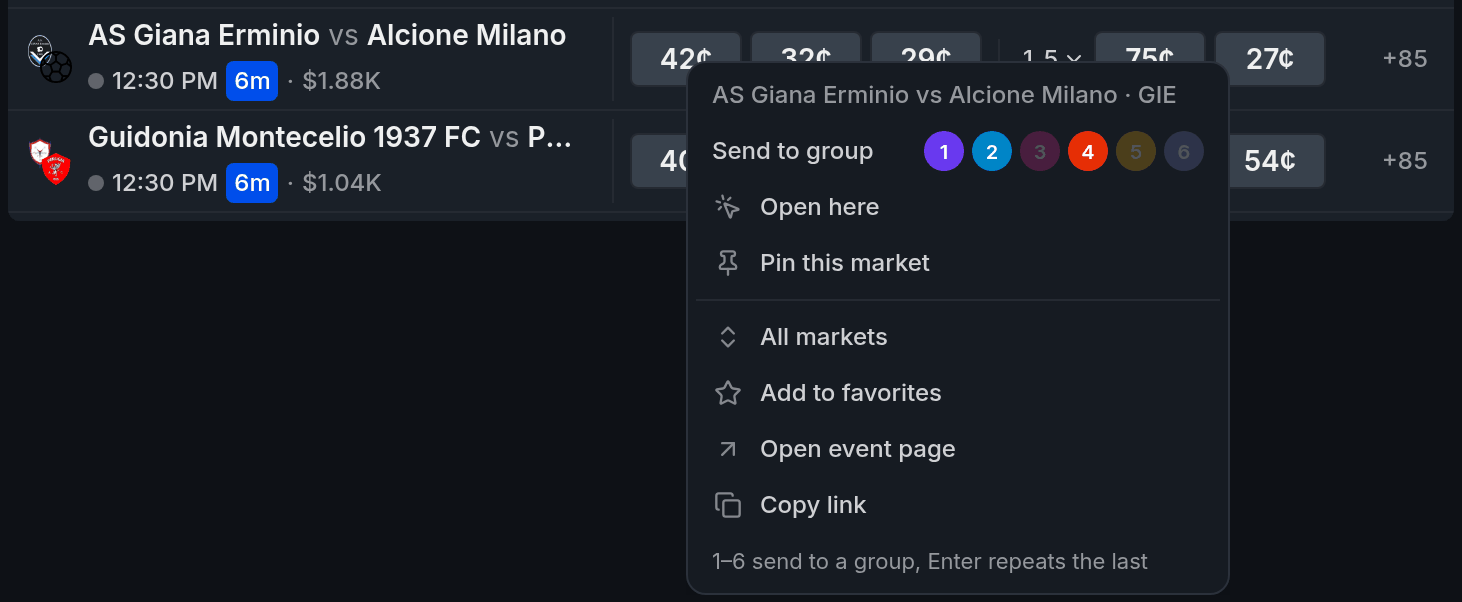
- 1Send to group
- 2Group 5: no widgets connected
- 31–6 send to a group
Open a match
Click a row to see all its markets, in tabs for Popular and each period, map or set. Pin a market by its title and it shows up on that match's Pinned tab.
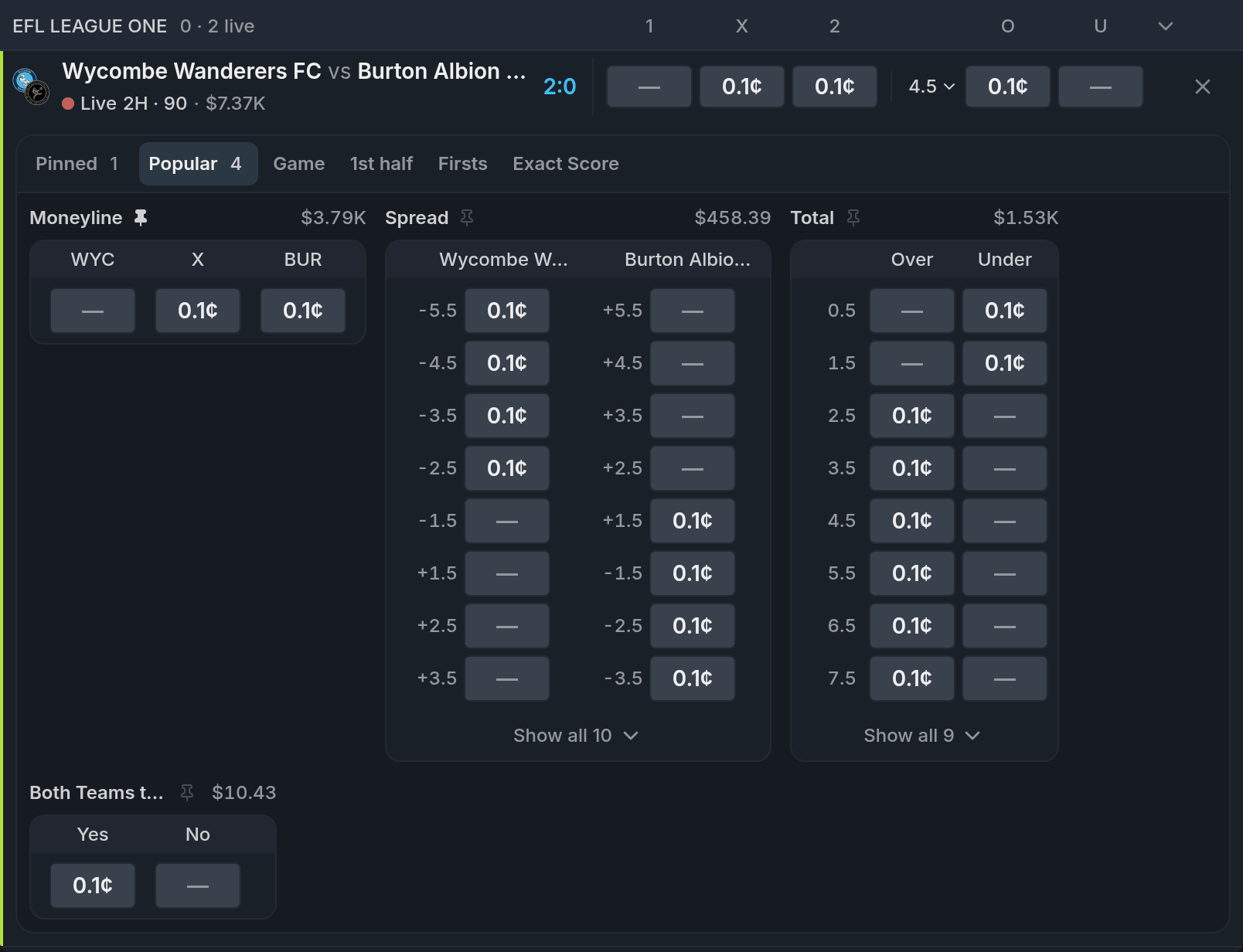
- 1Pinned tab
- 2A pinned market's pin
- 3Market volume
Your positions and orders
On a match where you hold something, the open card has a Book button. Sell loads the whole position into the Betslip in the same colour at the best bidBidA resting order to buy. The best bid is the highest price any buyer is offering right now.; nothing sells until you send it there. Click an order's shares or limit price to change it, or ✕ to cancel it.
Changing an order cancels it and posts a new one, so it goes to the back of the queue. If the new order fails, nothing is left resting. Pro asks first unless you turn off Confirm actions.
With other widgets
- A tile click switches the Orderbook, Betslip, Chart and the esports widgets in the scanner's colour.
- Sell in Book fills in the Betslip in that colour.
Tips
- The Sports Trading template sets up this scanner with an Orderbook, Betslip and Live Trades, already linked.
- Trading two matches at once? Put a second Orderbook and Betslip in another colour and send prices there with right-click and a number key.
- Trade the same markets on every match? Turn on Pins on every event in settings, then pin each market once.
Finish reading to complete this lesson
Extras
Columns
Click a column header to swap it for another market, or + to add one. A row holds up to 8 outcomes. Columns are saved per sport, so football and tennis can each keep their own.
More ways to filter and read
- Sort by Time, Vol or 24h Δ. Sorting by 24h Δ adds each match's biggest 24-hour price move to its row.
- The Date menu has Tomorrow, Weekend, Next 7 days, Future, Past and a calendar. Past shows finished matches for one day, with the winning tiles ticked.
- The arrow next to Soon sets its window: 15 min, 1 h, 2 h or 4 h.
- A countdown chip appears when kick-off is less than four hours away.
- Star a match from its row, or a tournament from its league header.
- When a TOTALS or HANDICAP column has several lines on one match, click the line on that row to pick another.
- The figure in the corner of each market card shows volume. Click it to switch every card to liquidity.
- Collapse a whole sport or league by clicking its header.
Selling without the Betslip
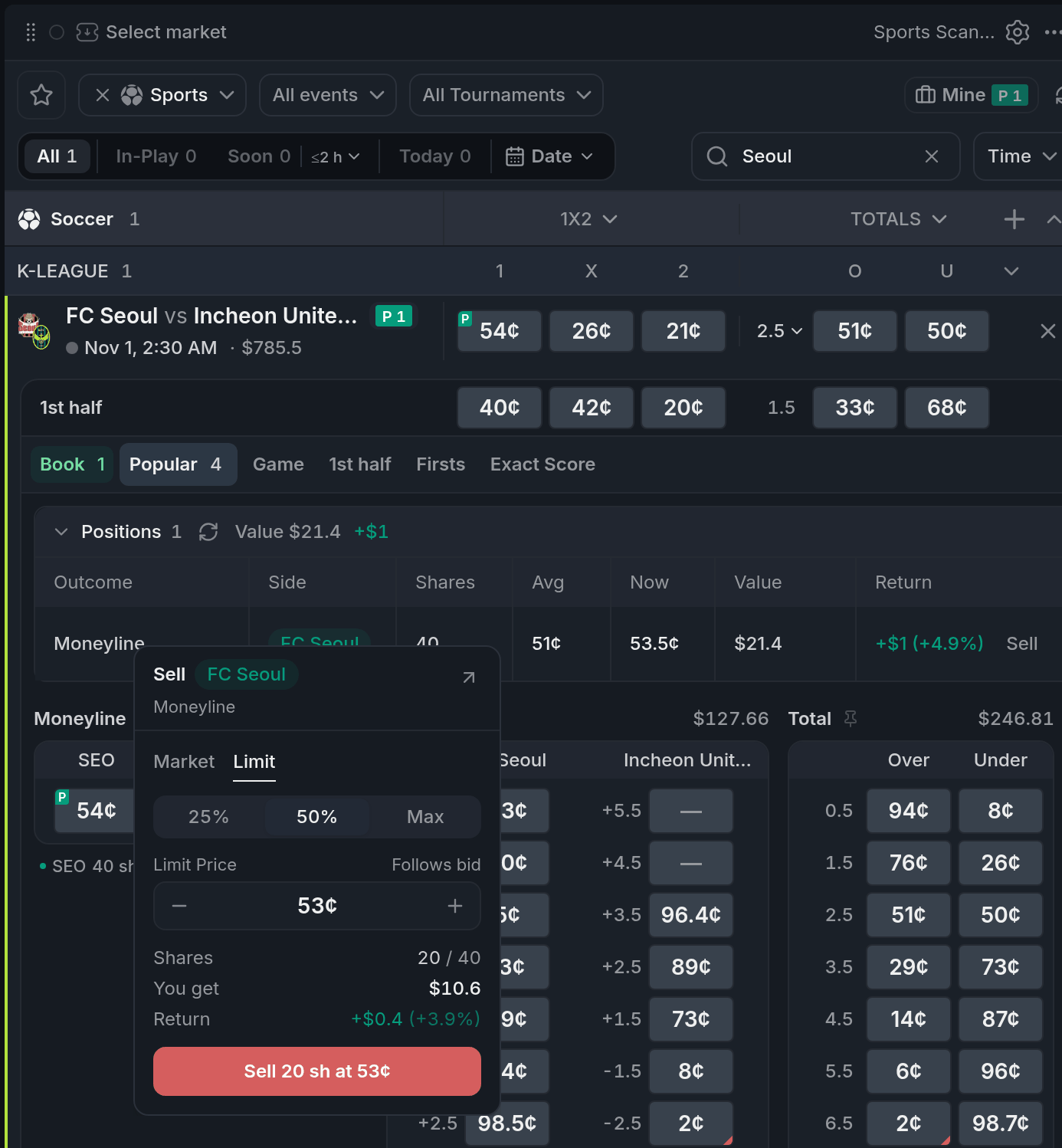
- 125% / 50% / Max
- 2Market / Limit
- 3Price stepper
- 4Sends the order
Turn off Sell opens Betslip (right-click a position in Book) and Sell opens a small sell panel instead. Pick Market or Limit, then 25%, 50% or Max. A limit follows the best bid until you nudge it with − and +. Here the panel itself is the confirmation: its button sends the order.
Right-clicking a position also offers Sell 50%…, Sell all… and Sell in Betslip.
Settings
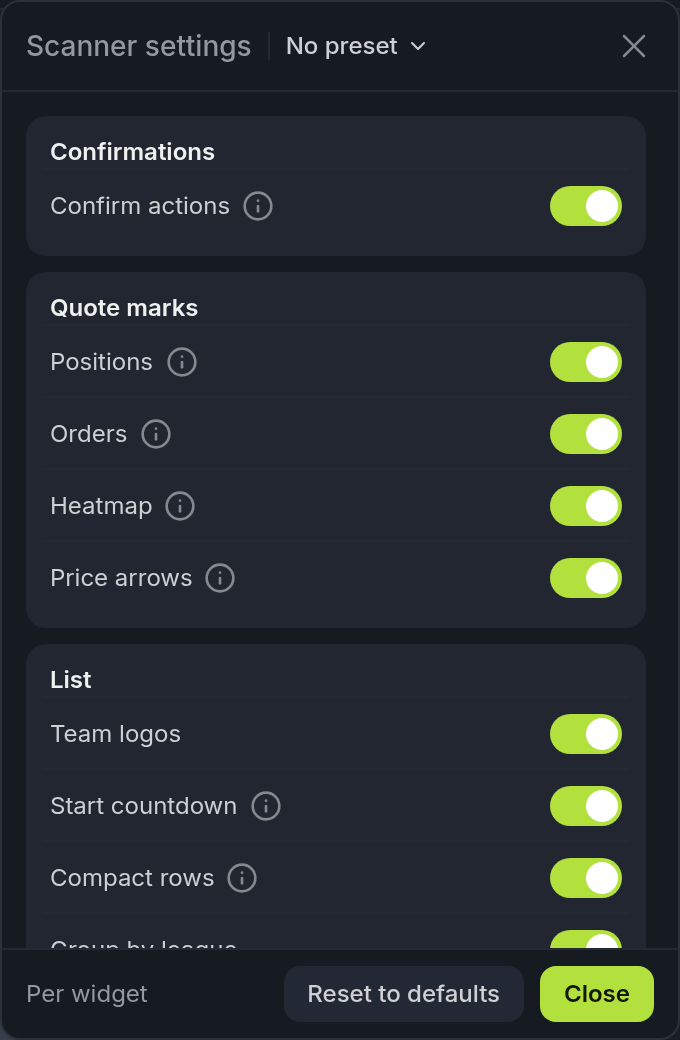
| Setting | What it does |
|---|---|
| Confirm actions | Asks before cancelling or changing an order from Book. On by default. |
| Positions | Shows the P mark and your PnL on the tiles you hold. |
| Orders | Shows the count of your resting orders on a tile. |
| Heatmap | Flashes a tile green or red when its price ticks. |
| Price arrows | A small corner arrow shows the last move for a few seconds. |
| Team logos | Shows a logo next to each match. |
| Start countdown | The countdown chip for matches starting within 4 hours. |
| Compact rows | Tighter rows, so more matches fit. |
| Group by league | Groups matches by sport and league. Off, it's one flat list. |
| Several open events | Opening a match keeps the others open instead of folding them. |
| Pins on every event | A market pinned on one match shows on the Pinned tab of all of them. |
| Scan columns | Reset brings back the default columns for the current sport. |