Chapter 1 · Getting started · Lesson 10 · 3 min
Sounds
Pro's sounds in one place. Pick what plays, how loud, and go quiet when you need to.
Pro can tell you what happened without you looking: your order filled, a big trade hit the tape, the book moved. Pro's sounds live under the bell in the workspace bar, on its Sound tab.
The Sound tab
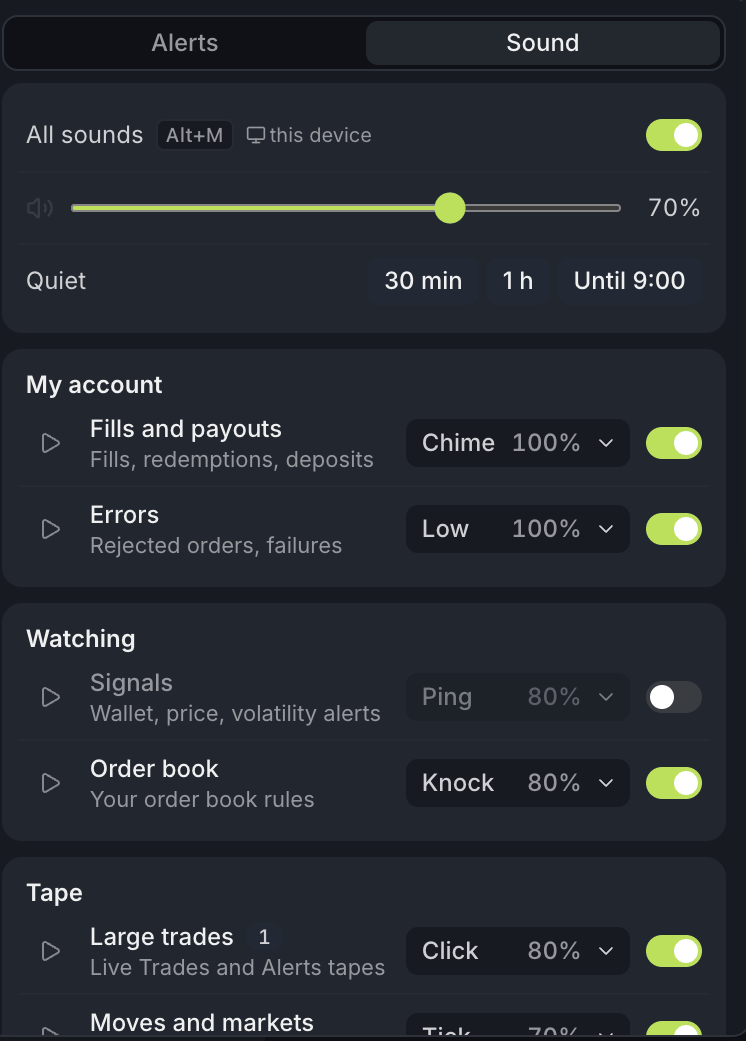
- 1All sounds and Alt+M, on this device
- 2Overall volume
- 3Quiet for a while
- 4Each sound and its volume
- 5Turns this sound on or off
At the top, All sounds turns sound on or off, and Overall volume sets how loud everything is. Below them, sounds come in four groups: My account, Watching, Tape, and Matches and crypto.
Click a row to open it. Pick one of six sounds (Click, Tick, Ping, Knock, Chime, Low) and set Channel volume; each pick plays once. Crypto windows has its own set of cues, and book alerts play each rule's own sound, so for Order book the pick only changes the preview.
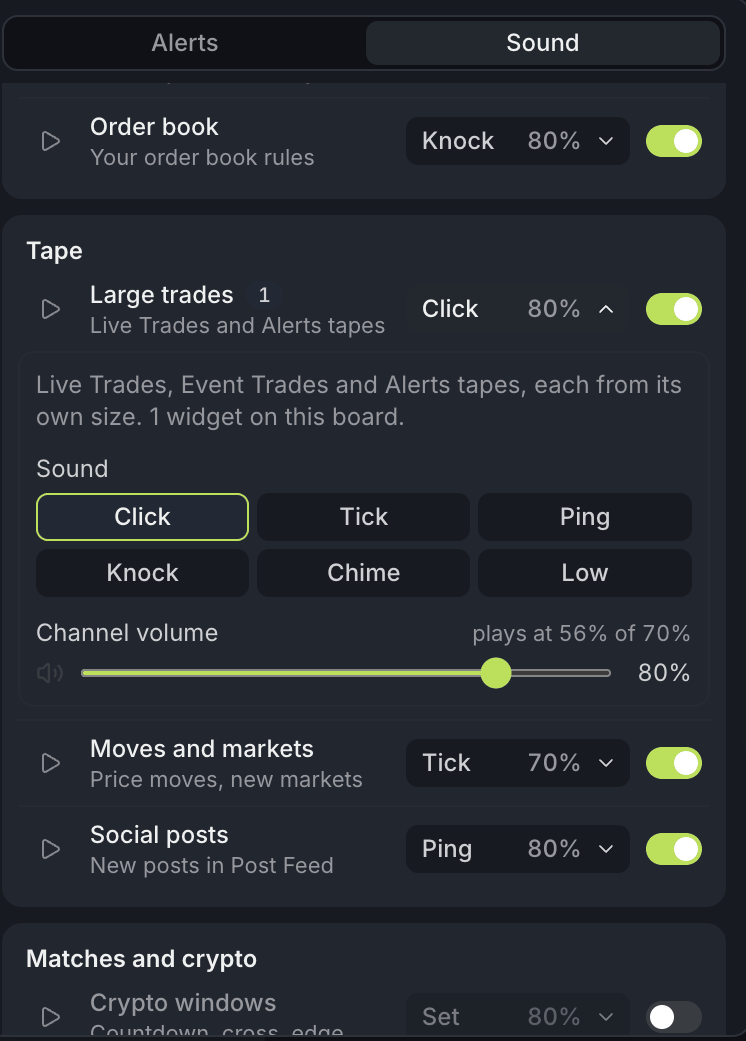
- 1Widgets on this board with sound on
- 2Pick a sound; it plays once
- 3Channel volume
What plays when
| Sound | When it plays |
|---|---|
| Fills and payouts | Your fills, redemptions and deposits. |
| Errors | A rejected order or a failed action. |
| Signals | Your wallet, price and volatility alerts. Off at first. |
| Order book | Your book alert rules. Each rule keeps its own sound; this row sets the volume. |
| Large trades | Big trades in Live Trades, Event Trades and Alerts, from the size you set there. |
| Moves and markets | Price moves and new markets in Alerts. |
| Social posts | New posts in the Post Feed. |
| Crypto windows | The countdown, a cross of the price to beat and the edge alert on crypto charts. Off at first. |
| Match events | In Esports Match: the result, and on CS2 map point, match point and pauses. |
Tape and match sounds only play from a widget with its own sound on, like Large trade sound in Live Trades. The number on a row counts those widgets on this board. A widget's own settings show a short sound line with Set up, which opens its row here.
Two widgets catching the same trade play it once, a burst of fills is one sound, and when two kinds land together, the more important one plays.
Going quiet
Press Alt+M (Option+M on a Mac) to mute or unmute Pro; muted, the bell shows a crossed-out speaker. All sounds, Quiet and In a background tab stay on this device only: mute the laptop for a call and the desk terminal keeps playing. Your sounds and volumes follow your account.
Quiet silences Pro for 30 min, 1 h or Until 9:00. The bell shows a moon with the minutes left, or the time Quiet ends, and Sound back on ends it early. A rejected order still sounds unless you turn off Errors while quiet.
Smart Flow's chime is separate: All sounds and Quiet don't silence it, so turn it off on the Smart Flow page.
Browsers only play sound once you've clicked or pressed a key in Pro. Until then the bell shows a small warning dot.
Tips
- Keep Fills and payouts and Errors on. They're the two you can't afford to miss.
- Signals, Social posts and Match events all start on Ping. Using more than one? Give each its own sound, so you know which it was without looking.
Finish reading to complete this lesson
Extras
Recent sounds
The bottom of the tab lists the last sounds this session: when, which kind, and what caused it, like a trade's outcome, size and market. Several events that played as one sound show ×2, ×3 and so on. Click the name to open that row, or hover a line and replay it.
Crypto windows
Each cue plays its own sound: a tick for the countdown, a ping at 10 seconds, a knock when the price crosses the price to beat, a chime when the edge reaches your alert. Under When, choose Windows with a position or Every window. The switch on the Crypto Scanner and on crypto charts is the same setting.
Options
| Setting | What it does |
|---|---|
| Buy higher, sell lower | Fills and trades play a little higher for a buy and lower for a sell. The arrows play a buy and a sell. On by default: with orders on both sides, a fill tells you its side by pitch. |
| In a background tab | Keeps playing while Pro isn't on screen. On this device only. |
| Errors while quiet | A rejected order still sounds during Quiet. |