Chapter 3 · Trading · Lesson 9 · 5 min
Book alerts
Alerts on the order book itself. Hear when a wall goes up or gets pulled, or when the price breaks a level.
Book alerts watch the order book itself, not just the last price. They tell you when a wall goes up or gets pulled, when a level thins out, when the price breaks through, or when the spread widens. You set them from the Orderbook and the Ladder.
What you can watch
On one price level:
| Alert | Fires when |
|---|---|
| Wall up | At least your amount stands on the level. |
| Thinned out | The level drops to your amount or less. |
| Wall pulled | A wall of at least your amount disappears from the level, whether it was cancelled or traded away. |
| Broken | The best price moves past the level. |
| Sharp jump | The level grows or shrinks by your percentage within the time you pick (10 s by default). |
On the whole book, with no level to pick: Wall near price fires when a big level shows up within a few cents of the price, and Wide spread fires when the spread gets wider than your limit.
Alerts fire on changes. If a wall already stands when you set Wall up, the alert waits for the next one.
Using it
Where to find it
The Ladder always has the bell in its header. In the Orderbook, turn on Show in this book under Book alerts in settings, and the bell joins the toolbar. Levels with an alert get a yellow mark under the price.
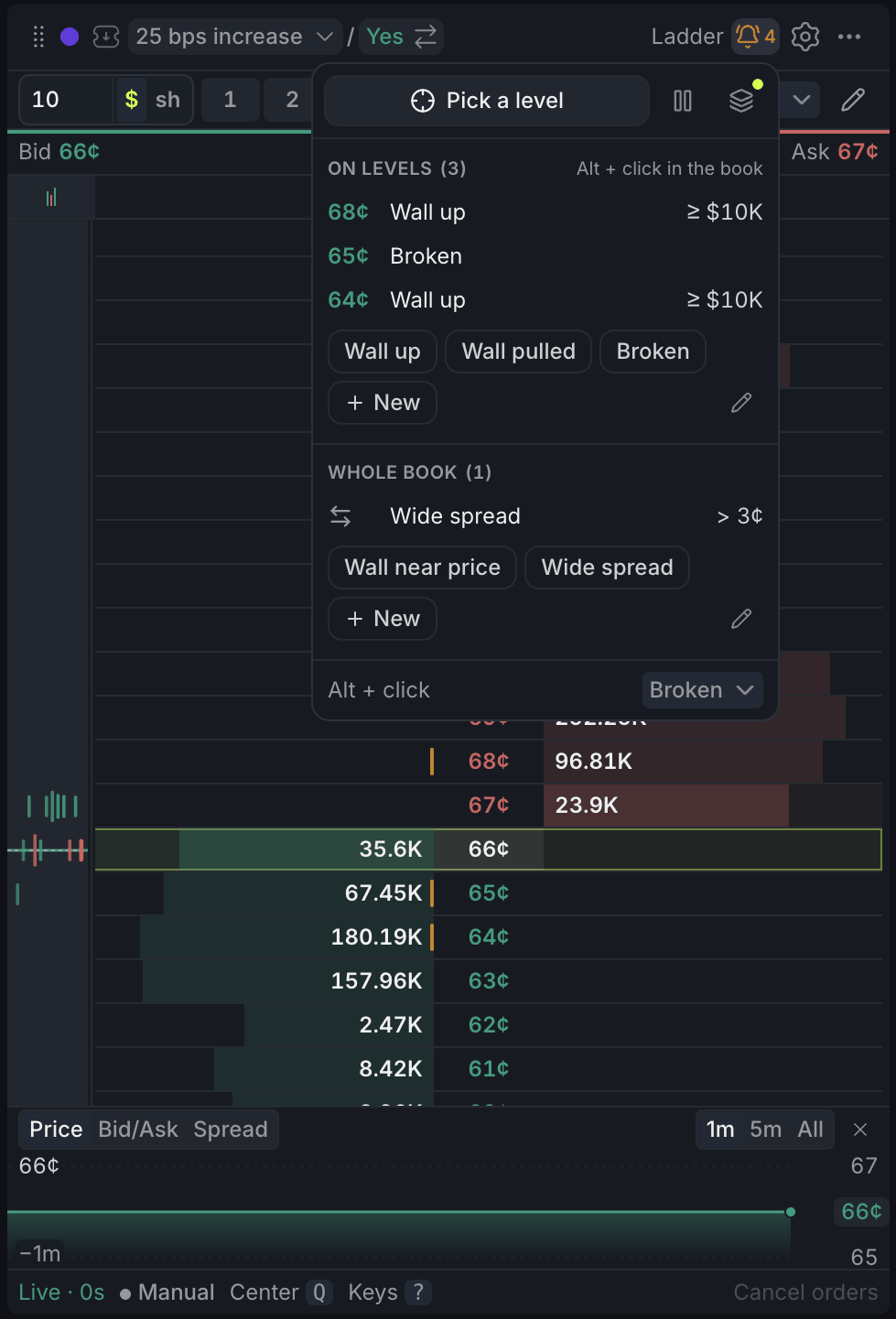
- 1Pick a level, then click a price
- 2Alerts on levels: click one to edit
- 3Quick chips and New
- 4Alerts on the whole book
- 5What Alt + click sets
Setting an alert
The fastest way is Alt + click on a price. It sets an alert right away with the type and template you used last, and the pop-up that confirms it has Undo in case you hit the wrong price. The first time, it opens the form instead. Alt + click never places an order, even with Click Trade on.
To pick the type yourself, open the form. In the Ladder, click a price. In either widget, click the bell, then Pick a level, then a price.
The form
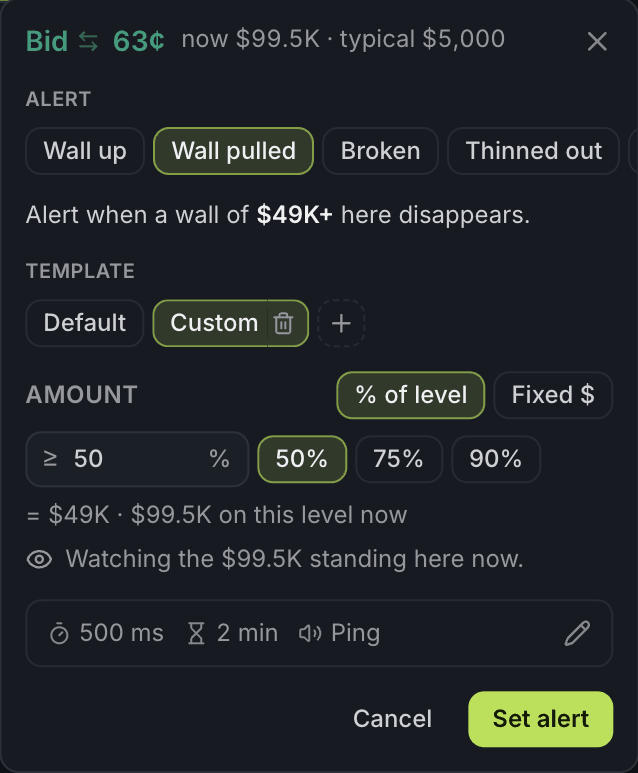
- 1Alert type
- 2Templates: Default, yours, + to add
- 3How the amount is sized
- 4More settings: the pencil opens them
Pick the alert type, then a template. Every type has a Default, and + adds your own. Whatever you change on a new alert is saved to its template, so the next one starts the same way.
Amount is either a fixed dollar amount or one that scales with the market:
- Fixed $: the same dollar amount on every market.
- × typical: a multiple of a typical level on this market, so one template fits thin and deep books alike.
- % of level: a share of what stands on the level you click. Wall pulled and Thinned out offer this instead of × typical.
In the settings row at the bottom of the form (open it with the pencil), Must last waits until the change has held that long, so a wall that blinks in and out stays quiet. Then quiet sets how long the alert rests after it fires.
When it fires
You get a pop-up and a sound, and the level flashes. With the Orderbook or Ladder open on that market, that happens the moment the book changes. With Pro closed, the alert still lands in your alert feed, and on Telegram if you tick Also send to Telegram.
With other widgets
- The Alerts widget lists book alerts under Markets in Manage, and Add → Order book alert sets one on any market.
- Fired alerts land in the pop-up stack with the rest of your alerts.
Tips
- Resting an order behind a wall? Put Wall pulled on the wall. If it goes, nothing stands in front of your order any more, and you'll know.
- Waiting for a breakout? Put Broken on the level and stop watching the screen.
- Lots of bots on the market? Raise Must last to 3 s, so only walls that stay make a sound.
Finish reading to complete this lesson
Extras
More settings
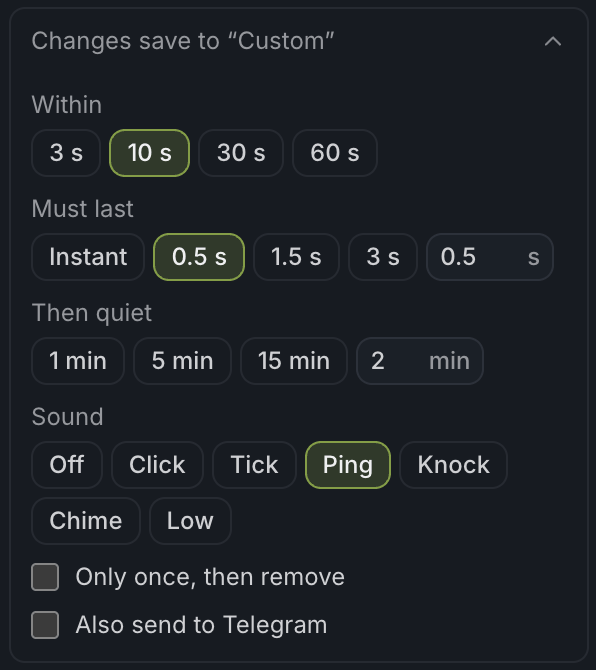
- 1The template your changes go to
- 2Must last
- 3Then quiet
- 4Once only, and Telegram
| Setting | What it does |
|---|---|
| Within | For Sharp jump and Wall pulled: the time the change has to happen in. |
| Must last | How long the change must hold before the alert fires: Instant, or a number of seconds. |
| Then quiet | How long the alert stays silent after it fires, in minutes. |
| Sound | The sound it plays, or Off. Click a sound to hear it. How loud it plays is set under Order book in Sounds. |
| Only once, then remove | The alert deletes itself after it fires. |
| Also send to Telegram | Sends the alert to Telegram as well. |
A typical level is the median size of the 20 levels nearest the best prices. Broken and Wide spread have no amount.
Quick chips
Under each group in the bell, quick chips set common alerts in one click: Wall up, Wall pulled and Broken for levels, Wall near price and Wide spread for the whole book. A level chip opens the form at the best bid; a whole-book chip sets the alert on the market straight away. The pencil next to them picks which chips show.
Alt + click
The Alt + click menu at the bottom of the bell sets what Alt + click does. Last used repeats your last level alert, Opens the form always asks first, and picking an alert type always sets that type with its last-used template.
Alert sets
Alert sets, at the top of the bell, are ready-made groups of alerts like Walls & pulls or Breakout, sized to the book in front of you. Set up a few alerts you like? Save them as your own set and add them to any market in one click.
Changing an alert
Click an alert in the bell to edit it. In the Ladder, clicking the price of a marked level works too. In the form's header you can switch the side or click the price to type a new one. Pause one alert from its row, or every alert on the market with Pause all.