Chapter 3 · Trading · Lesson 10 · 4 min · Pro+
Order book queue
Move your resting orders to the front of the line, or keep them there as the market moves.
Orders at the same price fill in the order they arrived, so where you stand in line decides whether you get filled. The queue bar in the Orderbook moves your resting orders to the front in one click, and Follow keeps them there while the market moves.
What you see
Turn on Queue bar under Queue in the Orderbook's Display settings. The bar sits under the toolbar: your bids on the left, your asks on the right. A side only shows up when you have orders resting on it.
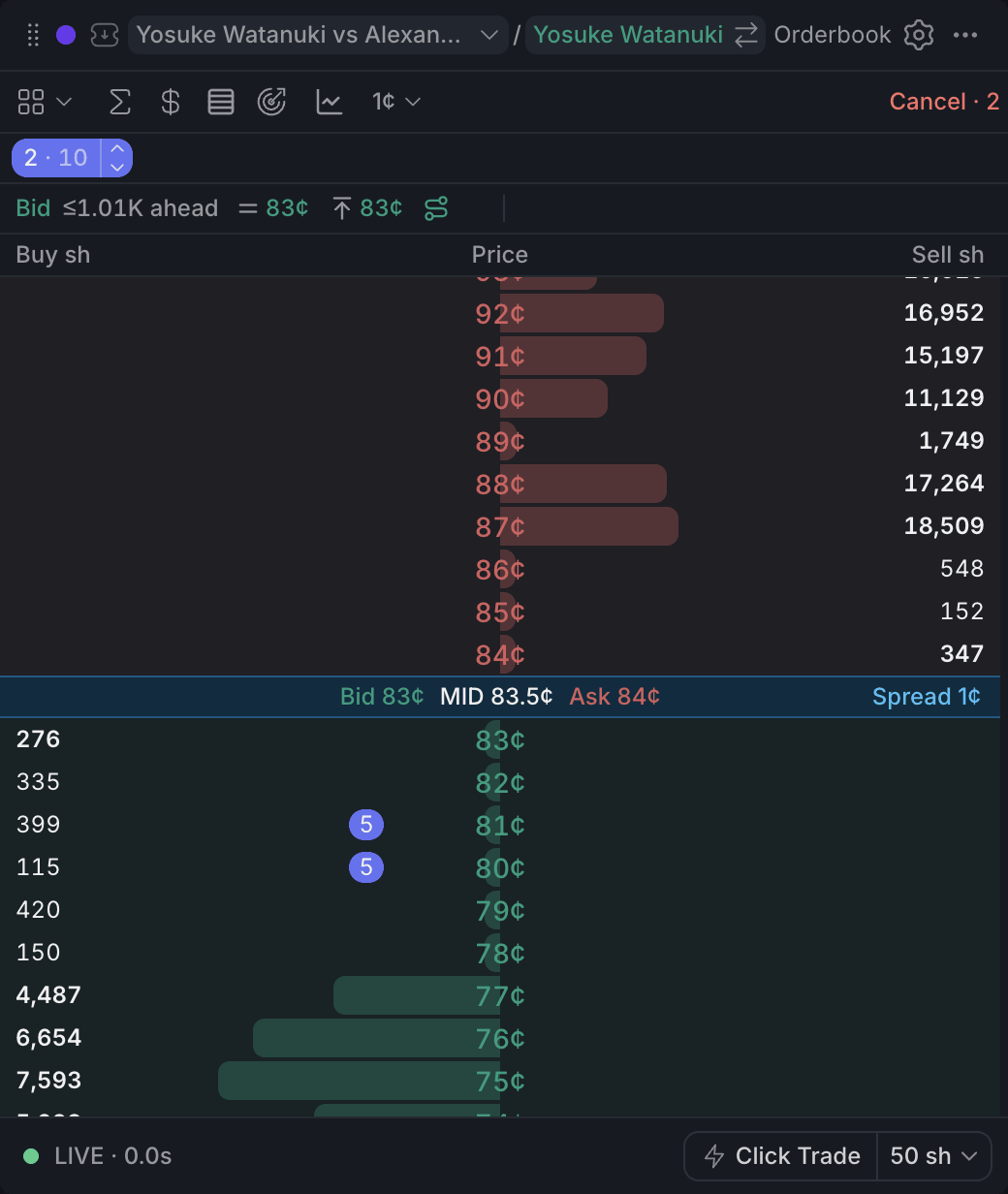
- 1Shares from others ahead of your best order
- 2Join: the best price others quote
- 3First: one tick better, Join on a one-tick spread
- 4Follow: keep moving them as the market moves
- 5Your resting orders
Each side starts with how many shares from other traders stand ahead of your best order. A "≤" means part of that sits at your own price, where the book can't tell who came first.
Using it
Join and First
Join moves your orders onto the best price others are quoting, behind whoever is already there. First moves them one tickTick sizeThe smallest price step a market allows, usually 1¢. Some markets trade in 0.1¢ steps. better, ahead of everyone. Each button shows its price and by default turns into Confirm, and a second click moves the orders. Every order behind the new price moves, backups included.
Follow
Follow keeps re-placing your orders as the market moves, up to a price you set. Click Follow on a side and pick where to stand:
- First: a tick ahead of everyone.
- Join: on the best price, behind those already there.
- Behind: 1 to 5 ticks back from the best price. When the market comes to you, your orders move back to keep the gap, so you don't stay the best price.
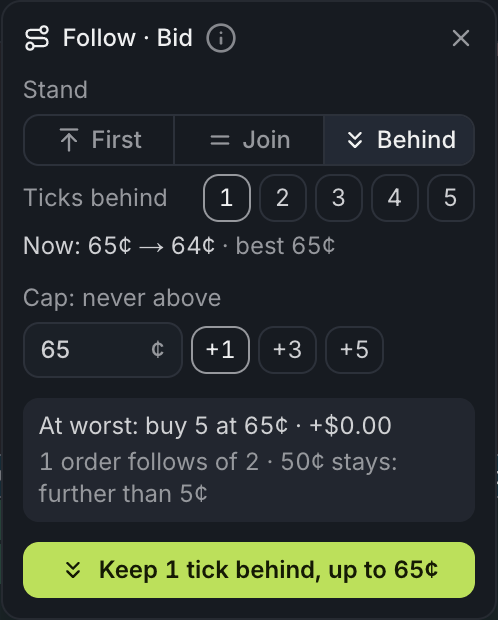
- 1Where to stand
- 2How many ticks behind the best price
- 3What would move right now
- 4The cap: never past this price
- 5Start following
The cap is the price your orders never go past, and the sheet shows what would happen right now.
While it runs, Join and First give way to a button with the cap and the number of moves. Click it to stop. Follow also stops on its own, say at the cap or after more than 12 moves a minute, and for a few seconds the button says why.
Every move cancels your order and places a new one, so you go to the back of the line at the new price. If the new order is rejected, the old one is already gone.
Follow never takes liquidityLiquidityOrders resting in the book that others can trade against right away., runs only while this Orderbook is open on this outcome (slower in a background tab), and leaves your orders where they are when it stops.
With other widgets
- The Orders widget shows each re-posted order as a new one.
- Join, First and Follow move orders on that side of the outcome wherever you placed them, including the Betslip. Follow a side from one Orderbook only.
Tips
- Want fills without paying up? Use Behind with 1–2 ticks, just under the best price.
- Tiny orders jumping in front of you? Set Ignore orders under to 20 or 50, so only real size counts.
- Keep a backup order further down. Follow leaves it alone, but Join and First move it too: the yellow dot warns you.
Finish reading to complete this lesson
Extras
While following
When the spread is a single tick, First joins instead, since one tick better would trade against the other side. A yellow dot on Join or First means one of your orders would travel further than your far limit. "you're first" in the ahead count means nobody is ahead of you.
Follow only moves orders within your far limit. The ones further back are backups and stay put, except in Behind, which pulls back any order the market reaches. Orders at the same price with the same expiry are merged into one order when they move.
The cap row gets a dashed frame in the book, and your orders on a followed side carry a small route mark. A new price has to hold for a moment before Follow reacts, so a quote that flashes and disappears moves nothing. After moving to the front with First, Follow doesn't move again just because others join your price: you're already ahead of them.
Why Follow stops
| On the button | What happened |
|---|---|
| stopped: cap | You rest on the cap and the market is past it. |
| stopped: no orders | The side has no resting orders left. |
| stopped: too often | More than 12 moves in a minute, usually another trader doing the same thing. |
| stopped: failed | A move didn't go through. |
| stopped: deviation | The next price is further from the mid than Max deviation from mid in Click Trade settings allows. |
| stopped: minimum | An order's remaining size is under the exchange minimum. |
| stopped: balance | Moving up would need more cash than you have free. |
The reason also shows as a notice. Click Follow to set it up again.
Settings
| Setting | What it does |
|---|---|
| Queue bar | Shows the bar under the toolbar. Turning it off stops Follow on both sides. |
| Ignore orders under | Levels thinner than this many shares don't count as a queue to join or beat. 0 counts every level. |
| Default follow cap | How far past the current target the cap starts in the Follow sheet, in cents. |
| Confirm Join and First | Always, Past the limit (only moves further than the far limit) or Never. |
| Far limit | Join and First mark moves longer than this, and Follow leaves orders further back than this alone. 0 turns it off. |