Chapter 4 · Analysis · Lesson 10 · 3 min
Traders
Your own list of wallets, with nicknames, tags and folders. Plus the trader window you open from anywhere.
Traders is your own list of wallets: every one you've given a nickname, tag, folder or note, plus every one you have an alert on. No market needed. Nicknames, tags, folders and the trader window work across all of Pro, so they live here.
What you see
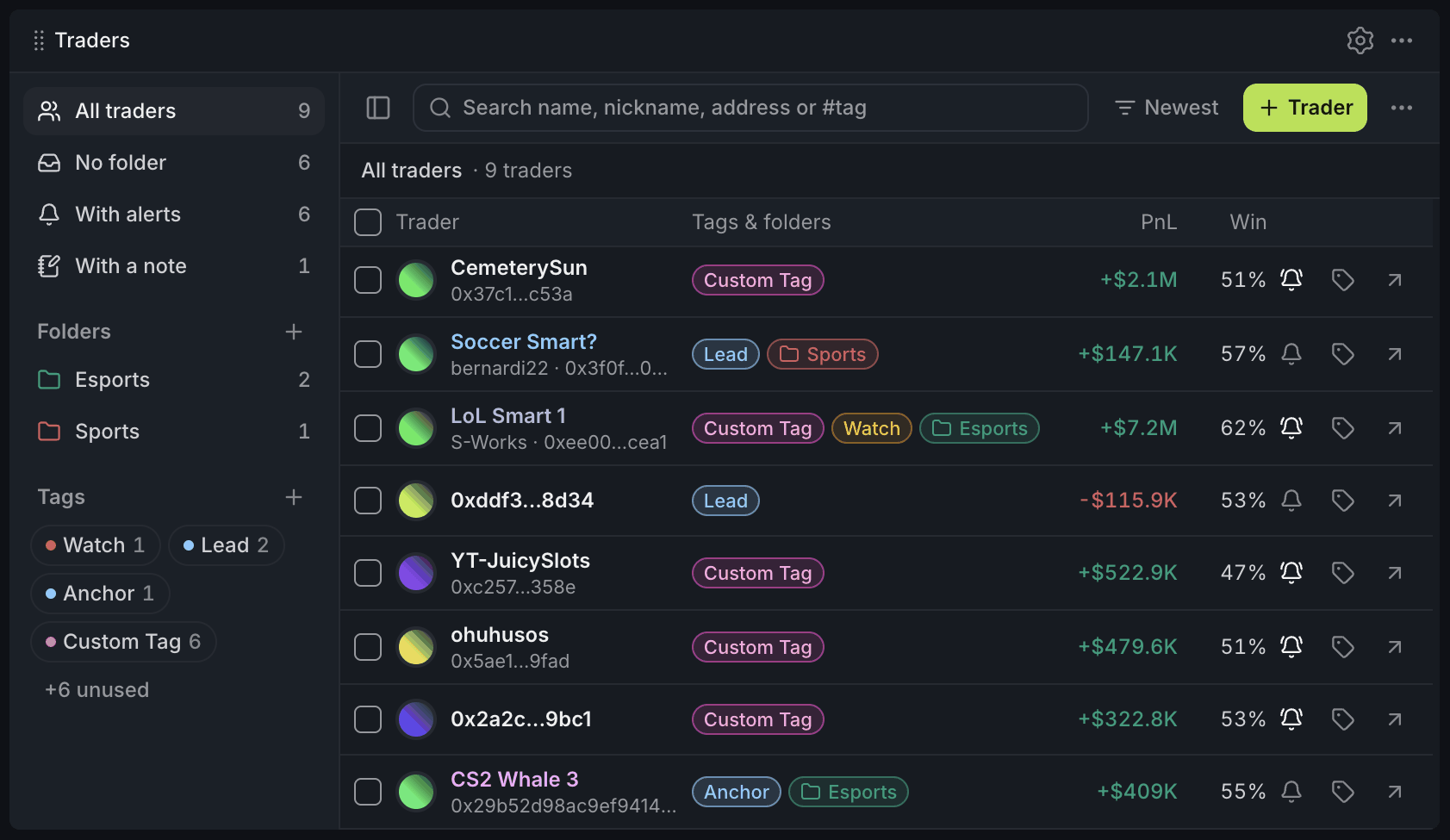
- 1Views and your folders
- 2Your tags, with counts
- 3Nickname, real name under it
- 4A folder on a wallet
- 5PnL, win rate and alert bell
On the left are views (All traders, No folder, With alerts, With a note), then your Folders and Tags. Each row shows the trader, their tags and folders, P&L and win rate (PnL and Win, once the widget is wide enough), and a bell: click it to set an alert on that wallet. It's lit when one is on.
Using it
Nicknames
A nicknameNicknameYour own name for a wallet, in a colour you pick. Pro shows it in place of the wallet's name everywhere. is your own name for a wallet, in a colour you pick. It replaces the wallet's name everywhere in Pro; hover it for the real name and address. Set it with the pencil next to a name, or in Mark.
Tags and folders
A tagTrader tagA label you put on a wallet to say what kind of trader it is, such as Copy or Avoid. A wallet can have several, and lists can filter by them. says what kind of trader it is: Copy, Alpha, Watch, Risk and more come built in. A folderFolderA group of wallets you put together by hand, such as your NBA sharps. Lists can filter to a folder, and Live Trades can show only its trades. is a group you build by hand, such as "NBA sharps". A wallet can have many of both.
Click tags on the left to narrow the list, and choose Any or All when you pick several. To file wallets, drag rows onto a folder, or tick them and use Folder or Tags in the bar that appears.
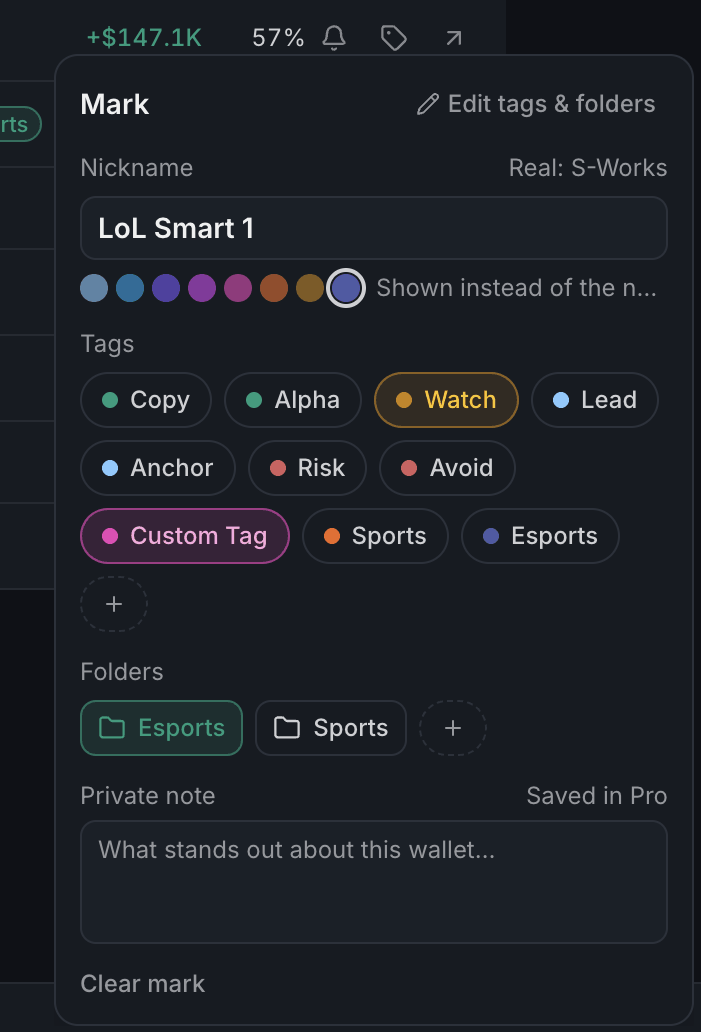
- 1Nickname and its colour
- 2Tags: click to turn one on
- 3Folders: + makes a new one
- 4A note only you see
Adding wallets
Trader finds a wallet by nickname, name or 0x address. Give it a nickname or a folder, and it's in.
Got a list? Import list in the ⋯ menu takes one address per line, with a nickname after a comma. Open a folder first and they all land in it; outside a folder, lines without a nickname are skipped. Export CSV saves the wallets in view.
Their trades in Live Trades
Open a folder, or filter by tags, and press Trades above the list. Every Live Trades widget on this workspace then shows only those wallets.
The trader window
Click a row to open the trader window, the same one you get from Live Trades, Holders, Smart Money and Alerts.
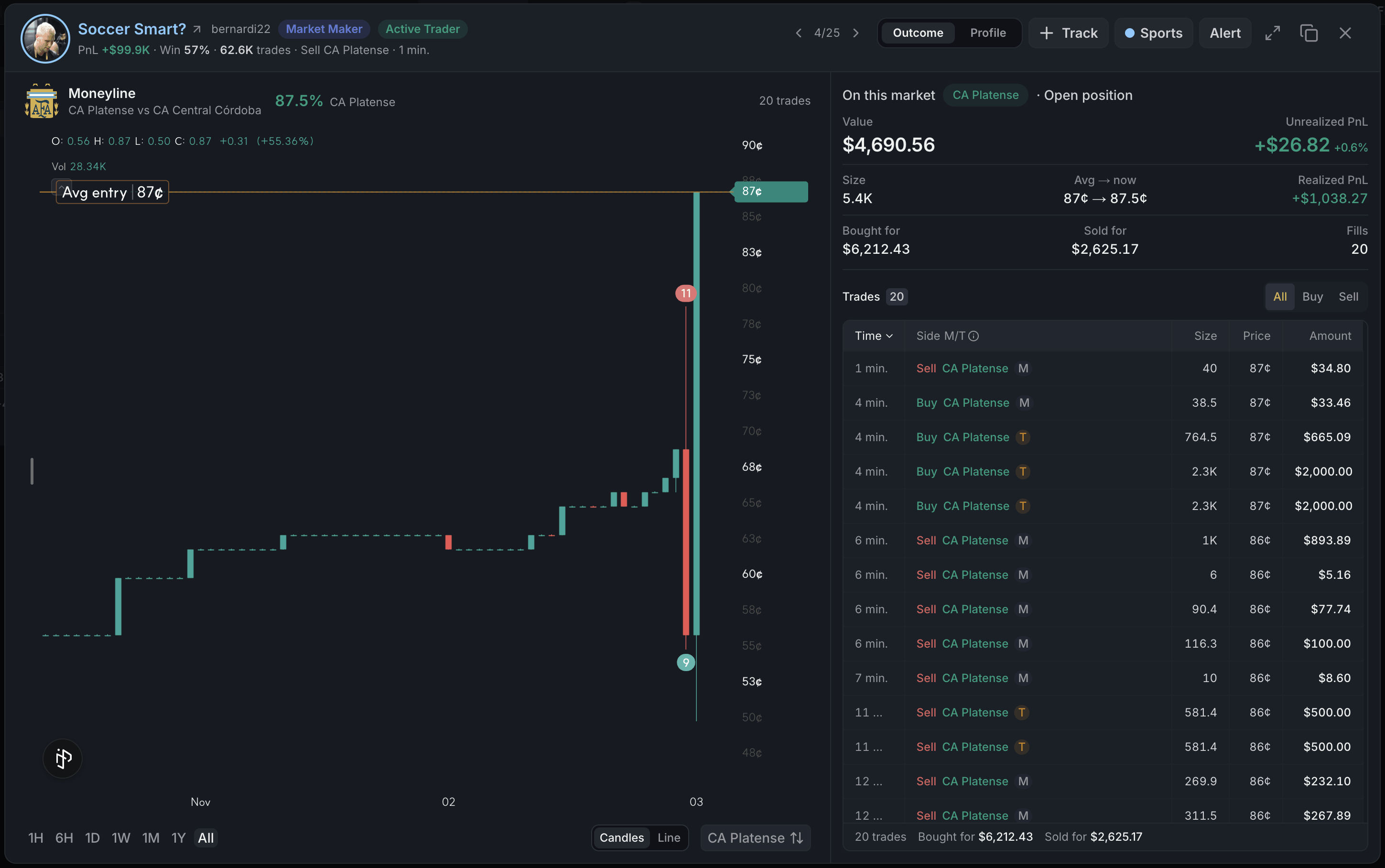
- 1Nickname, PnL, win rate, trades
- 2Step through traders with j / k
- 3Outcome or Profile
- 4Track, Mark and Alert
- 5Expand window
Track follows the wallet, Mark sets its nickname, tags, folders and a private note, and Alert sets an alert. Opened from a market, Outcome shows what they did there and Profile their whole portfolio. Expand window fills the screen, and Pro remembers it. Opened from a list, j and k step through the wallets.
With other widgets
- Live Trades, Holders and Alerts can show only wallets from your tags or folders.
Tips
- Make a folder per niche, then press Trades: Live Trades becomes a tape of only the people you rate.
- Type
#and a name in the search box to find wallets by tag or folder. - Nicknames skip green and red, which the tape uses for buys and sells. Keep those for tags.
Finish reading to complete this lesson
Extras
Bulk changes
Tick rows to select them, or Shift-click to select a range. In the bar above the list, Tags adds or removes tags, Folder files the wallets (Move takes them out of every other folder), and Clear marks wipes them. Dragging onto a folder with Shift held moves instead of adding.
Editing tags and folders
Right-click a tag, or use ⋯ on a folder, to rename it, change its colour or delete it. Deleting one keeps the wallets. Edit tags & folders in Mark does the same for all of them at once.
A new wallet alert
A new alert starts on the wallet's buys and sells from $1,000, delivered in the app. Change the actions, size and delivery before you save. A wallet with several alerts lists them first, so you pick the one to edit.
Sorting
The sort button switches between Newest (the wallets you added last come first) and A–Z.
Limits
You can mark up to 2,000 wallets and keep up to 100 tags and folders together.
Settings
| Setting | What it does |
|---|---|
| Real name and address | The second line under each trader. |
| Note | Your private note on that second line. |
| Folders column | Folders next to the tags in each row. |
| Compact rows | Shorter rows without avatars, so more fit. |
| PnL and win rate | The PnL and Win columns, loaded only for rows on screen. |